Start scenario
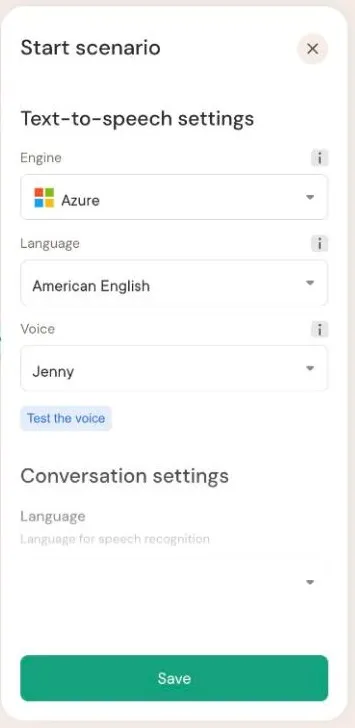
Start scenario is the entry point of every scenario and holds its defaults: the voice, speech recognition, intent matching, timing and AI fallbacks. It is created with the scenario and cannot be deleted.
No setting of this brick takes variables. See Variables.
When to use
Section titled “When to use”Set it once when you create a scenario, before adding bricks. Every brick inherits these values unless its own ⚙ settings override them. Open it by clicking the brick or Scenario general settings in the scenario menu.
Settings
Section titled “Settings”| Section | Setting | What it does | Default |
|---|---|---|---|
| Text-to-speech | Engine, Language, Voice | The scenario voice; Test the voice plays a sample | — |
| Conversation | Language, Engine, Model | Speech recognition, for example Google v2 with the telephony model | — |
| Conversation | Intent model | The model that matches answers to intents | — |
| Conversation | Intent threshold | 0–1; higher means stricter intent matching | 0.7 |
| Conversation | No input timeout | How long to wait for the caller to start speaking | 5 s |
| Conversation | Speech timeout | How long a pause ends the caller’s answer | 2 s |
| Conversation | Voice activity detection | Detects when the caller is speaking | — |
| Conversation | Active listening mode | Constant active listening or Interim listening | — |
| Conversation | Interruptible question | Lets callers answer before the prompt ends | — |
| Conversation | Class tokens | Biases recognition toward expected words | — |
| Conversation | Post filters | Cleans the answer; the result goes to {{last_question.answer_filtered}} | — |
| Conversation | Grammar parameters | Custom grammar rules for recognition | — |
| Conversation | Timezone | Used to read dates and times from answers | — |
| Fallbacks | Invalid and empty prompts, counters | Prompts for the language model on invalid and empty answers in AI questions | — |
Outputs
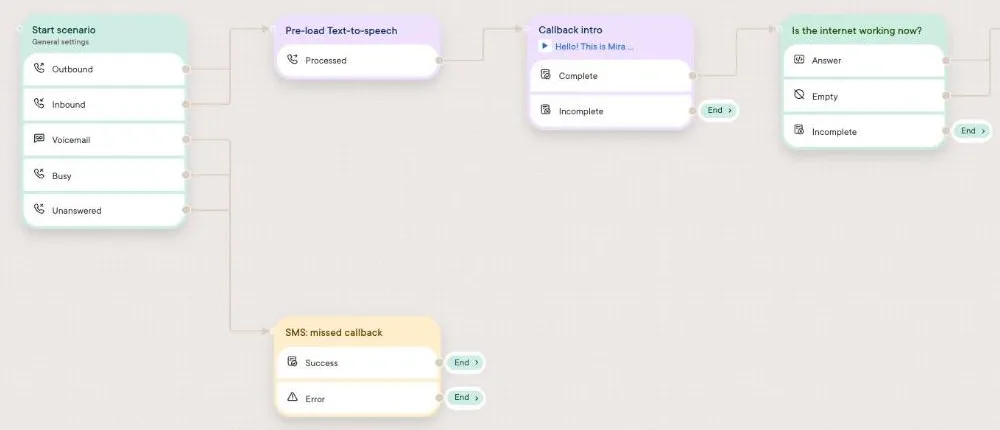
Section titled “Outputs”Start scenario routes every call by how it began, before anything is said:
| Output | When |
|---|---|
| Outbound | A person answers an outbound call |
| Inbound | Someone calls the agent’s number |
| Voicemail | An answering machine picks up an outbound call (only when voicemail detection is on for the scenario) |
| Busy | The line of an outbound call is busy |
| Unanswered | Nobody answers an outbound call |
- Every output must lead somewhere: Outbound, Inbound, Busy and Unanswered always, and Voicemail when voicemail detection is on. A scenario with an unlinked output is refused on save and publish. To simply end the call, link the output to End scenario.
- After Busy and Unanswered there is no call. Bricks that need a call (Question, AI question, Text-to-speech, Call transfer) take their failure output; bricks that need no call (SMS, HTTP request, Variables, JavaScript, Goal, Business Metric) still run. Use this to send an SMS or update your CRM when a callback does not get through: see SMS.
- Which scenario an agent plays for a call can depend on the call itself: see Routing in Agents.
- Older scenarios started with separate Outbound call and Inbound call bricks. Since API 1.80.0 those bricks are gone: stored scenarios were moved to these outputs automatically, and a call runs through the same bricks as before.
Good practice
Section titled “Good practice”- Match the recognition language to the language callers speak.
- Test the voice early with Test the voice.
- Use short timeouts for quick yes/no questions and longer ones for complex questions or older callers.
- Override per brick only where a branch needs a different voice or language.
Related
Section titled “Related”Global settings, Question, AI question