Contacts and segments
A contact is one phone number or SIP identifier plus any data you know about the person; a segment is a named group of contacts that an automation calls as one.
Scenarios read contact data as {{contact.<field>}} variables, for example {{contact.first_name}}. See Variables.
Contacts
Section titled “Contacts”Audience → Contacts lists everyone the account knows: number, segments and when the contact was created. Search by number, filter, or Download the list.
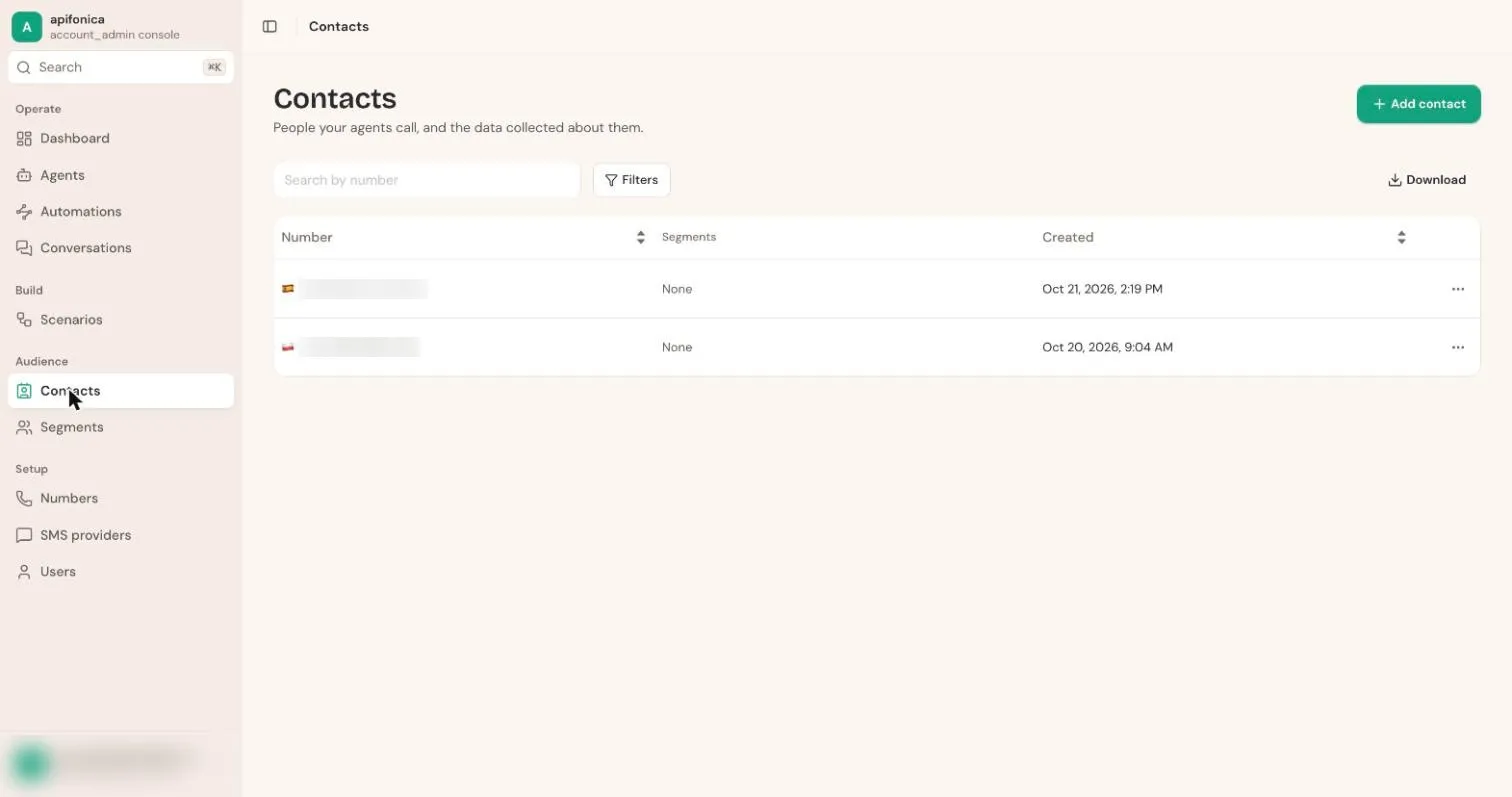
Add a contact
Section titled “Add a contact”- Click + Add contact.
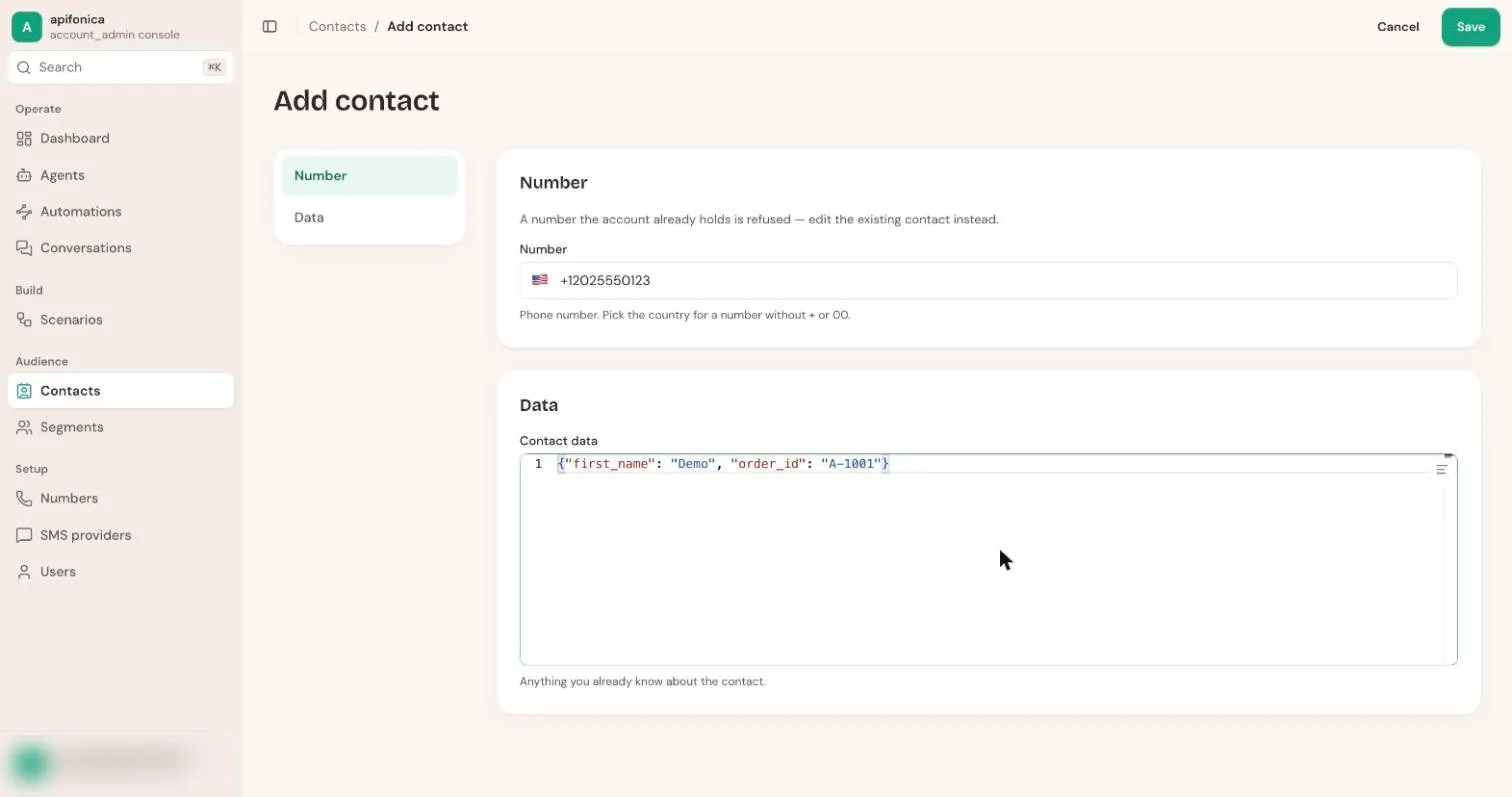
- Type the Number with its country code, or a SIP identifier. Numbers without + or 00 use the account country. A number the account already holds is refused: edit the existing contact instead.
- In Data, type JSON with anything you know, for example
{"first_name": "Demo", "order_id": "A-1001"}. - Click Save.
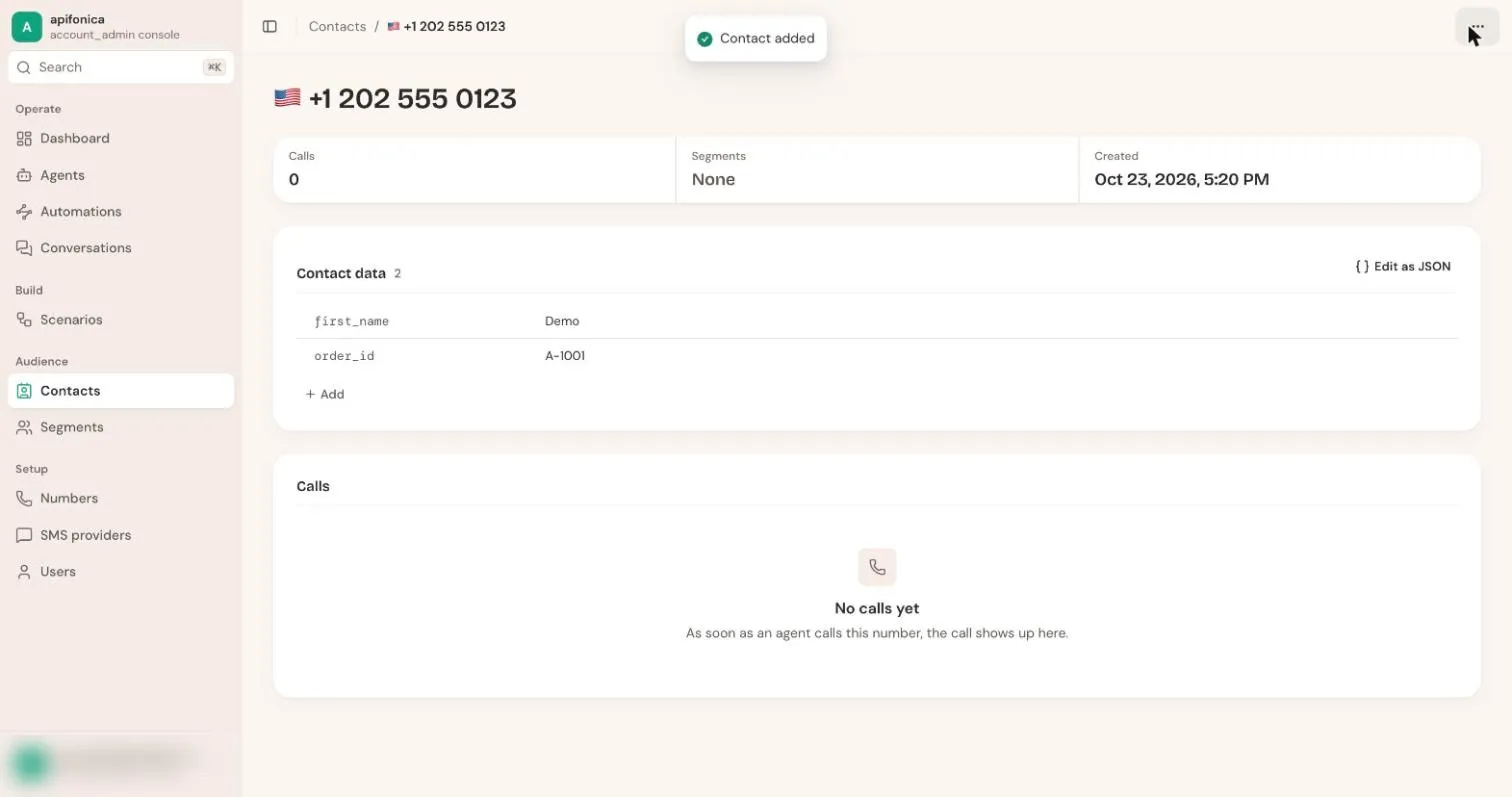
The contact page
Section titled “The contact page”The contact page shows the number of calls, its segments, the creation date, the Contact data as key/value rows (+ Add or Edit as JSON) and every call to this number. ⋯ → Delete removes the contact.
Scenarios can update contact data during a call. For example, a support scenario can write contact.complaint_id when it opens a ticket, so the next call already knows it.
Segments
Section titled “Segments”Audience → Segments lists your segments. All contacts is created automatically, contains everyone in the account and is kept up to date for you.
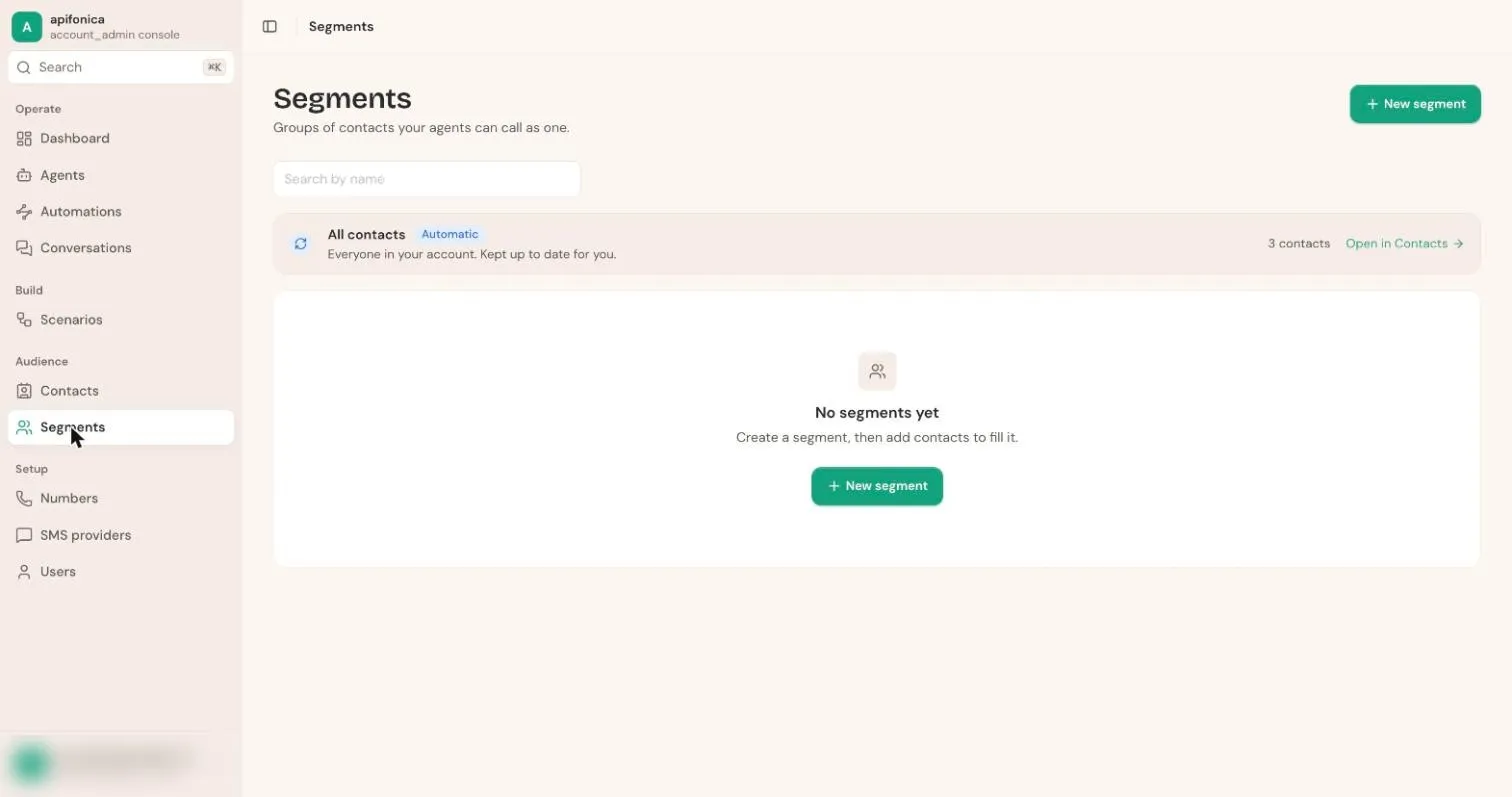
Create a segment
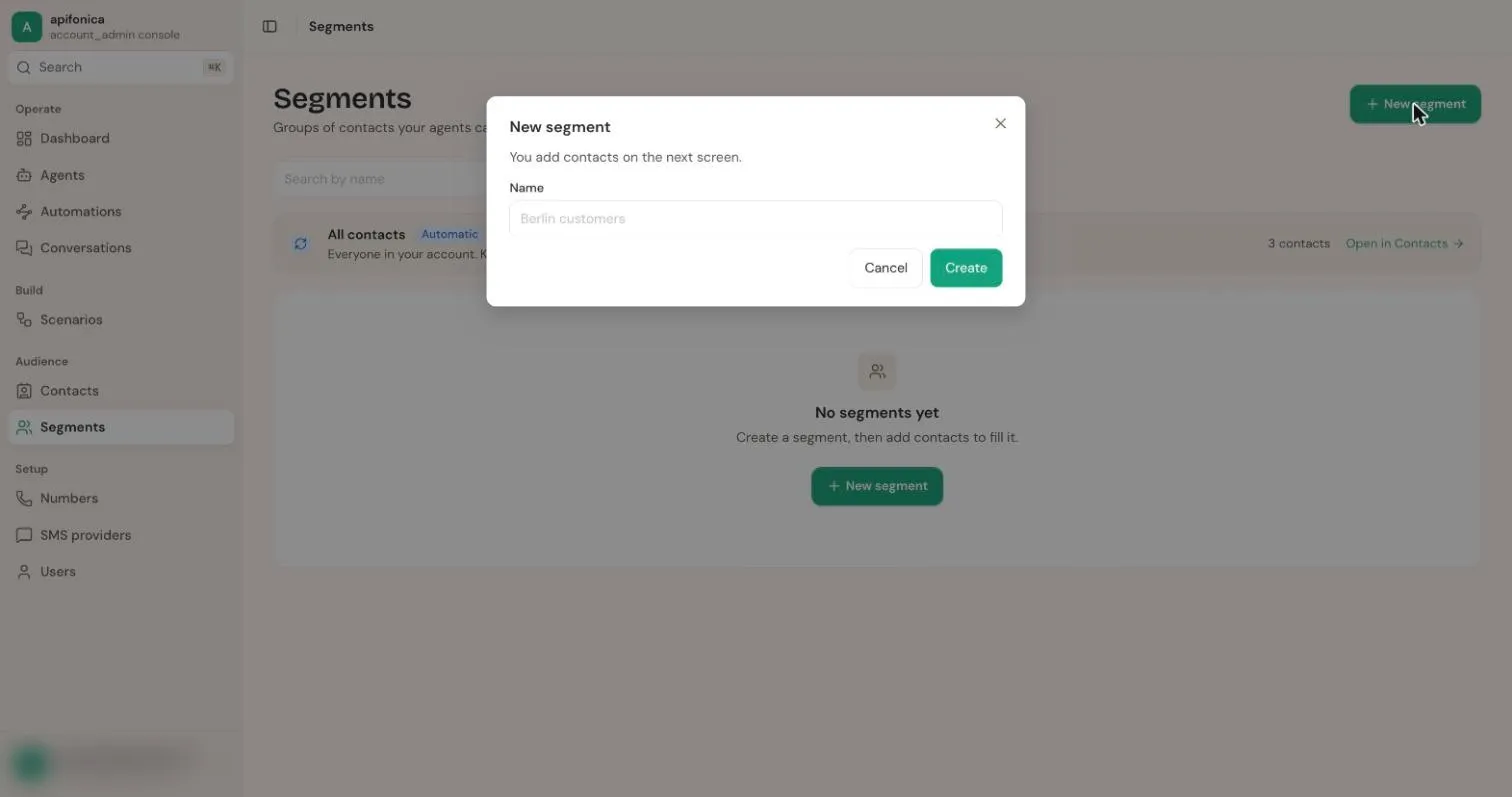
Section titled “Create a segment”- Click + New segment, type a name and click Create. You add contacts on the next screen.
- Add contacts in either way:
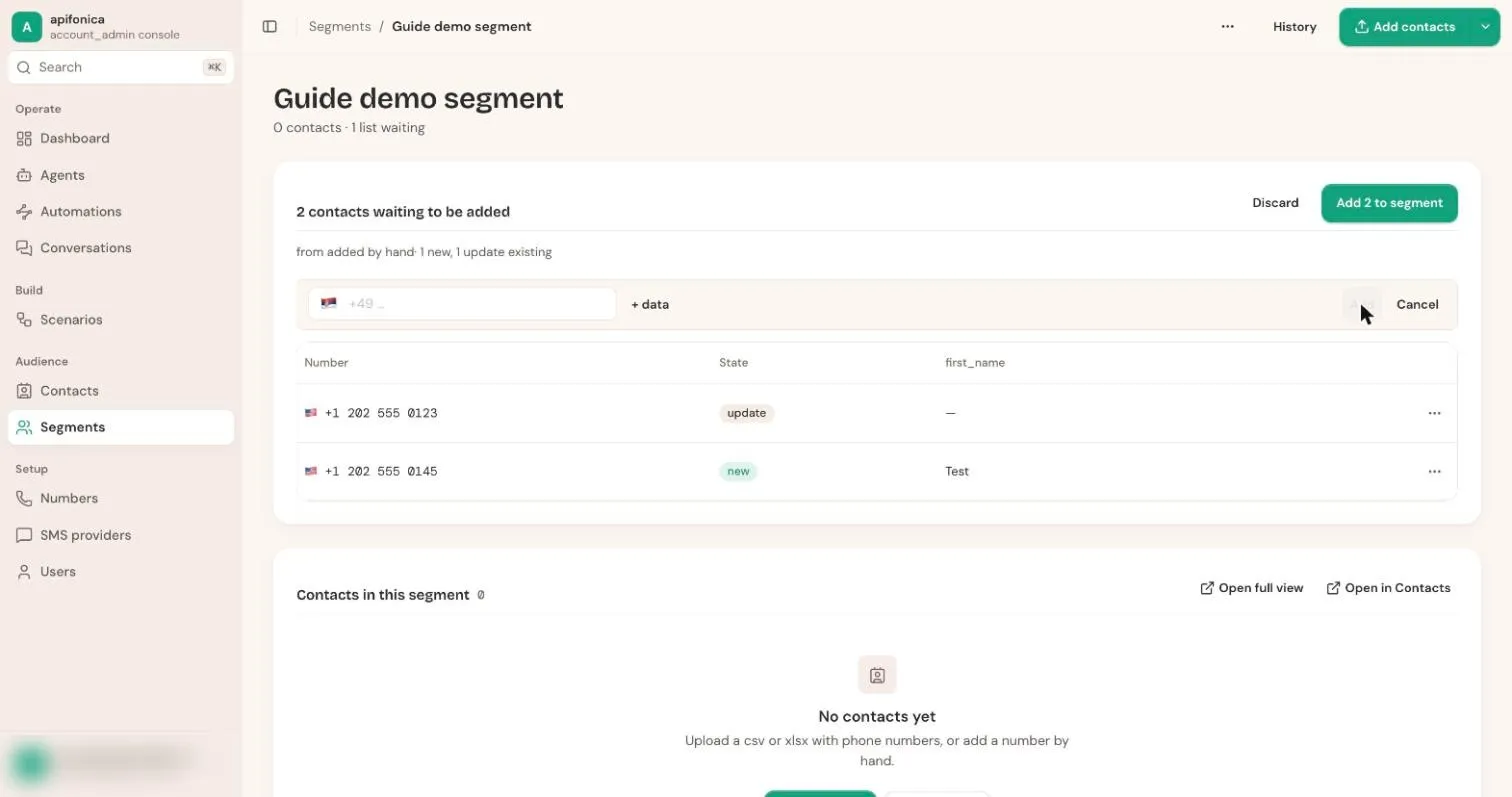
- Add by hand: type a number, optionally click + data to add parameters (or Edit as JSON), and click Add. Repeat for more numbers.
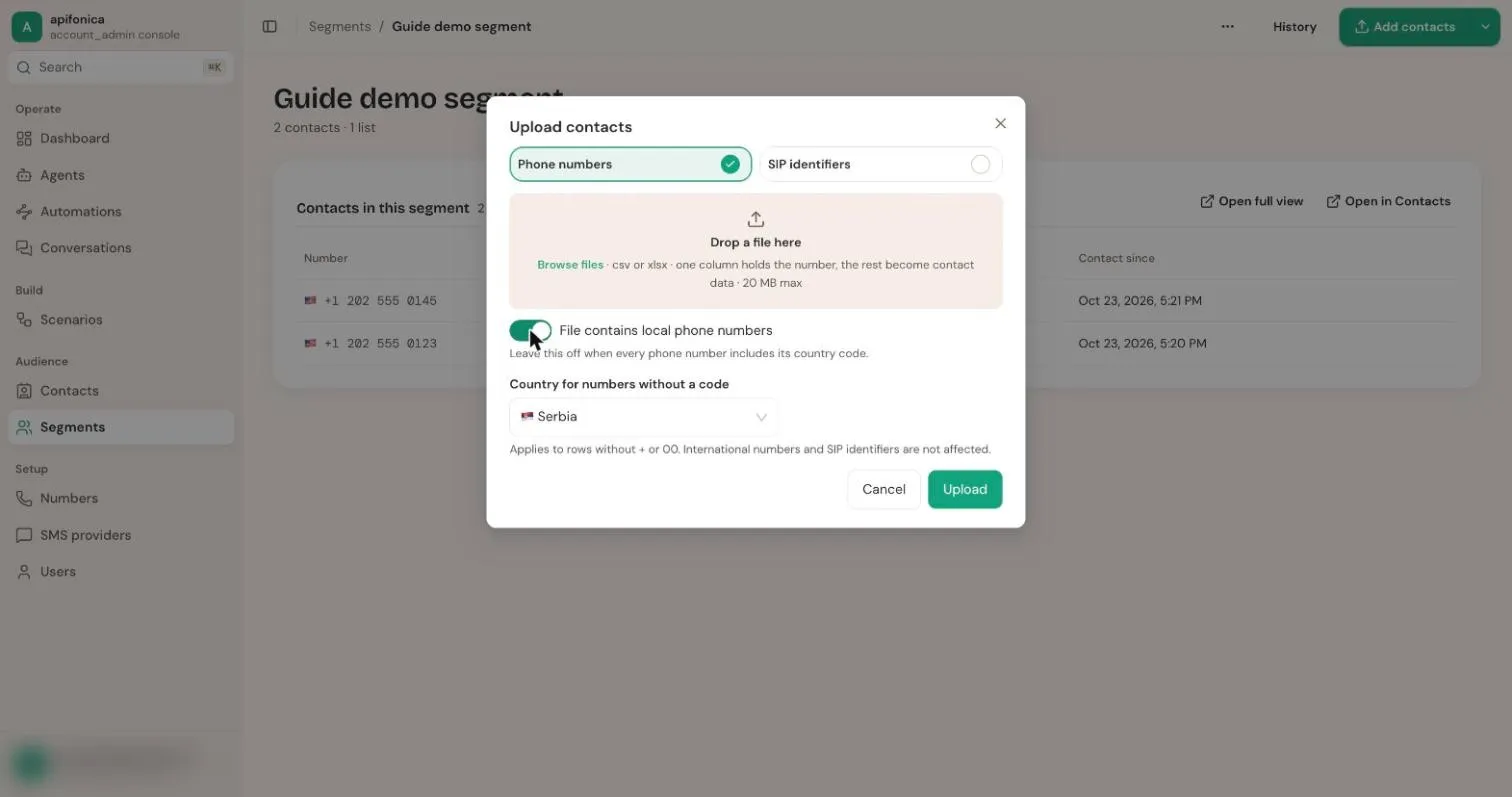
- Upload file: choose Phone numbers or SIP identifiers, drop a .csv or .xlsx file up to 20 MB (one column holds the number; the rest become contact data) and click Upload. Turn on File contains local phone numbers and pick the country if numbers lack a country code.
- New rows wait in a list marked new or update (the number already exists and its data will be updated). Click Add N to segment to commit them, or Discard.
The segment page
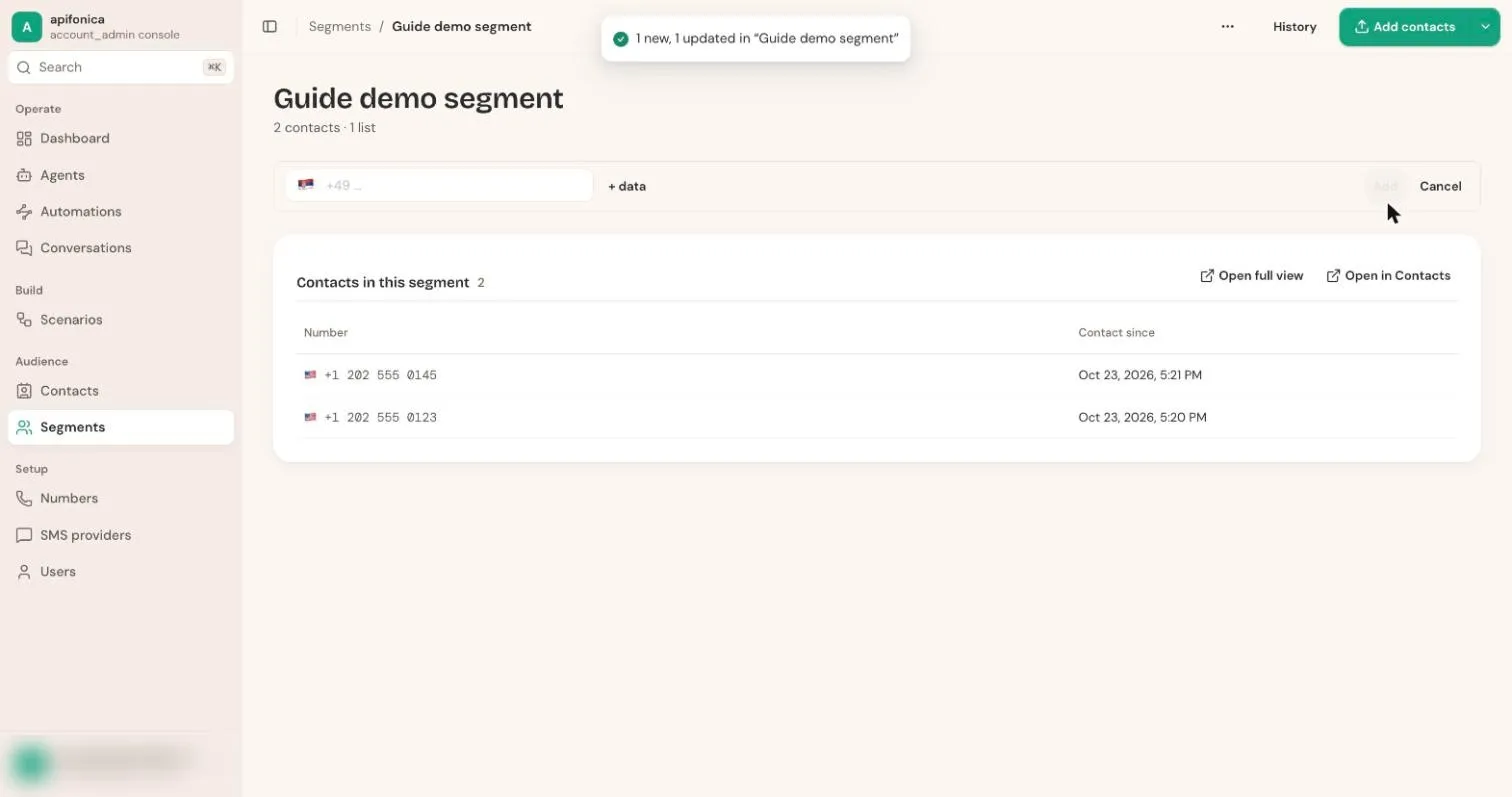
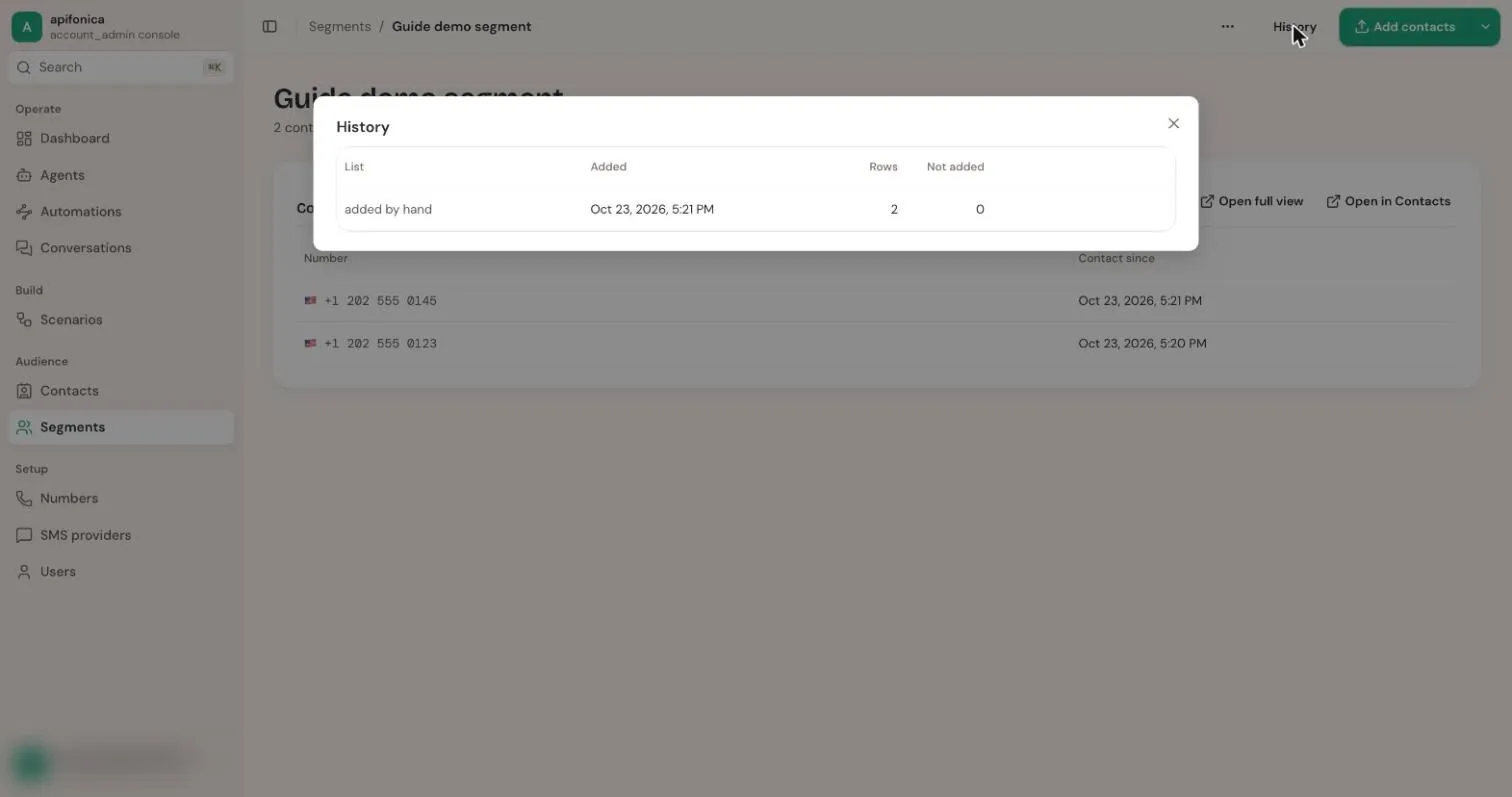
Section titled “The segment page”The segment page lists its contacts with the date each joined. History shows every list added (by hand or by file), with rows added and rows not added. ⋯ offers Rename and Delete; Open full view and Open in Contacts open the same contacts in a larger view.
Limits on contacts and their data
Section titled “Limits on contacts and their data”| Limit | Default | Can be raised by the tenant to |
|---|---|---|
| Contacts per account | 100,000 | 200,000 |
| Data fields per contact | 30 | 100 |
| Size of one value or array item | 100 bytes | 1,000 bytes |
| Items in one array | 100 | 500 |
- Array items are plain values only (no objects inside arrays).
- A data field holds one type across all contacts of the account: text, number, true/false, array or object. The first value written decides the type.
- Setting a value to
nullremoves the field from the contact. - A file row with a value that breaks a limit or has the wrong type is not added; the segment’s History shows rows not added.
Take a number out of a segment
Section titled “Take a number out of a segment”A number cannot be taken out of a published segment, in the console or through the API. Removing the list that added it keeps its contacts in the segment, and a published row cannot be removed.
You can delete the contact itself (contact page → ⋯ → Delete), but not while a live automation holds the segment, even a stopped or done one. To get the number out:
- Archive the automation that holds the segment (cannot be undone).
- Delete the contact. This deletes its data too and cannot be undone.
- Create a new automation on the segment.
Or build a new segment without that number and call it instead.
Before calling a segment
Section titled “Before calling a segment”Check every number in it. Segments are what automations call: see Automations.