Automations
An automation is an outbound run: one agent calls every contact in one segment, now, in a scheduled window or later when you start it by hand. Inbound calls need no automation.
New to outbound calling? Follow Quick start: outbound calls first.
The automation list
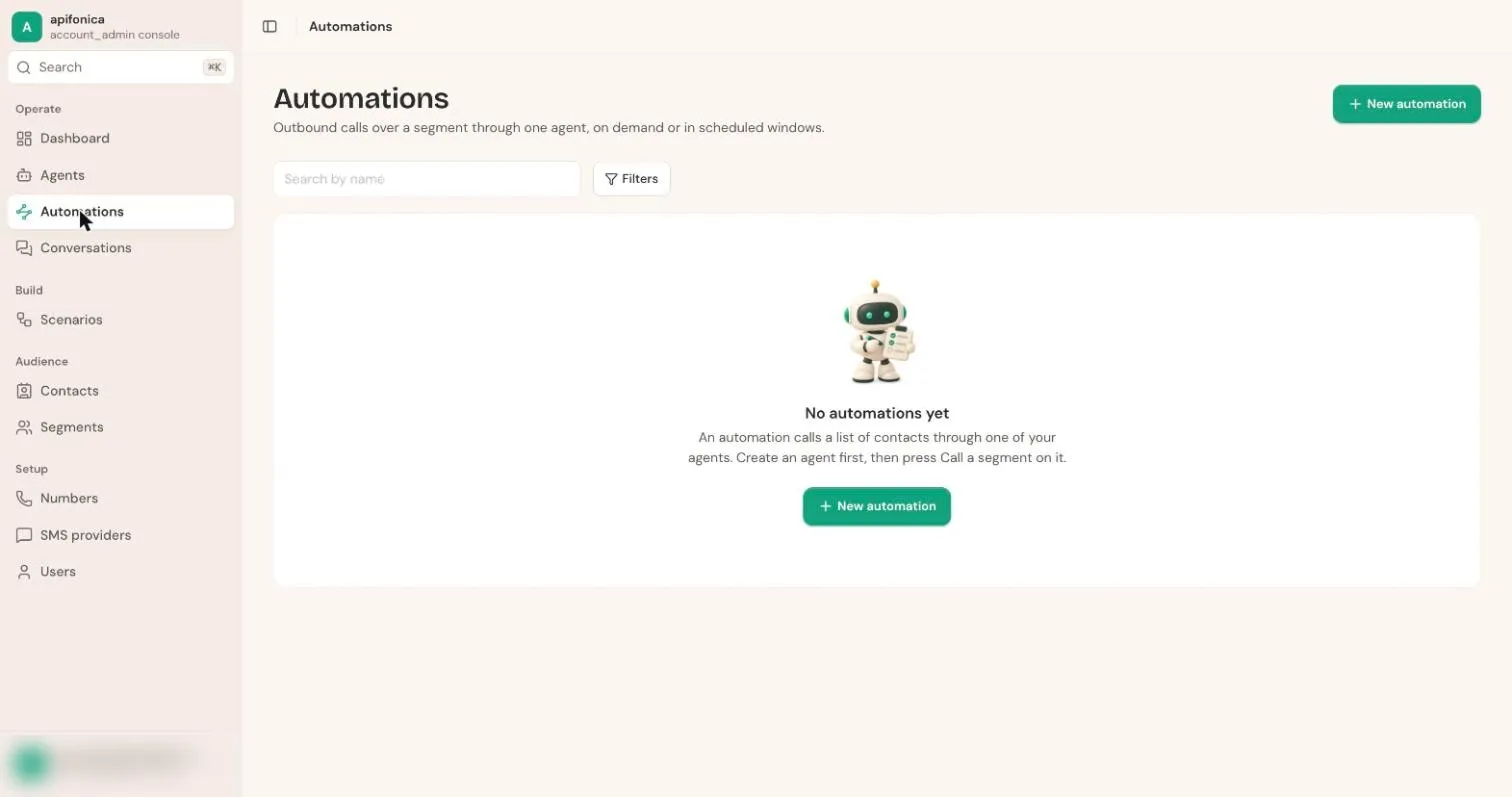
Section titled “The automation list”Operate → Automations lists every automation across the account’s agents, with search and filters. Until you create one, the page explains the order: create an agent first, then press Call a segment on it.
Create an automation
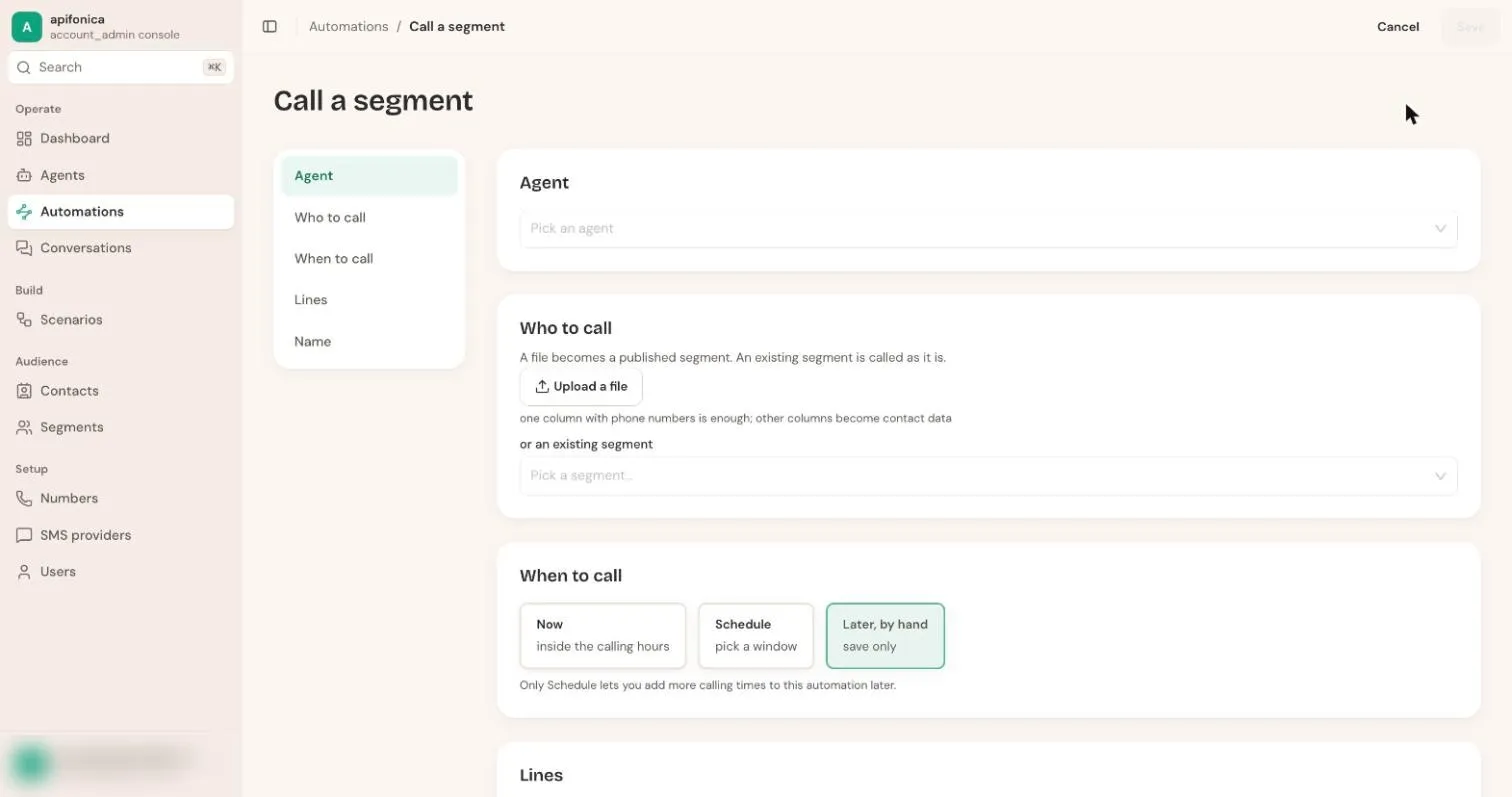
Section titled “Create an automation”Click + New automation, or Call a segment on an agent’s page. The form is called Call a segment.
- Agent: the agent that will place the calls. Its scenario, number, lines and calling hours apply. The agent’s scenario must be published.
- Who to call: Upload a file (CSV or Excel; one column with phone numbers is enough and other columns become contact data; the file becomes a published segment) or pick an existing segment.
- When to call:
- Now starts at once, inside the agent’s calling hours.
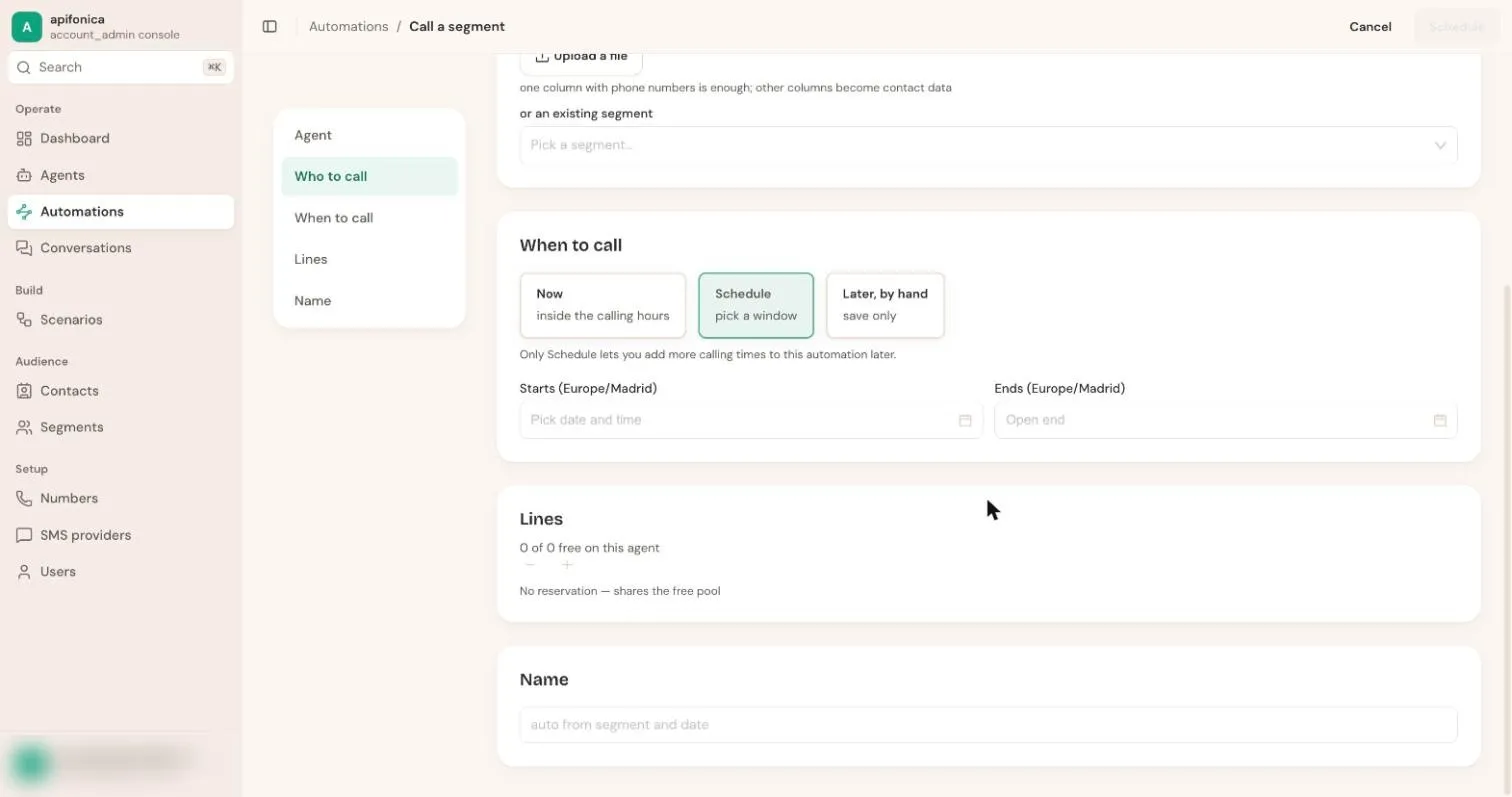
- Schedule asks for a start and an optional end date and time. The time zone is shown next to each field; check it. Only scheduled automations can get more calling times later.
- Later, by hand saves the automation without calling anyone.
- Lines: how many of the agent’s free lines to reserve. With no reservation, the automation shares the agent’s free lines.
- Name: leave empty to name it after the segment and the date.
- The button at the top right matches your choice: Schedule for a scheduled run, Save for later. Click it to finish.
Lines and limit policies
Section titled “Lines and limit policies”Lines are the account’s simultaneous call slots, assigned to agents. On the agent’s Lines settings, Limit policies reserve a named share of the agent’s lines for automations. Without policies, every automation on the agent competes for all its lines. See Agents.
Before you start calling
Section titled “Before you start calling”- Open the segment and check every number in it. The automatic All contacts segment contains everyone in the account, including test numbers of colleagues. See Contacts and segments.
- Make sure the scenario’s Outbound output (on Start scenario) leads where you want, and decide what Busy, Unanswered and Voicemail do: end the call, or send an SMS. If the agent has routes, the scenario that plays may not be its main one: an outbound route can send automation calls to a scenario of their own (see Routing on the Agents page).
- Check the agent’s calling hours and time zone: calls only go out inside them.
- To stop an agent from dialling at all, use Disable in the agent’s ⋯ menu; it keeps the number and settings.
Attempts and retries
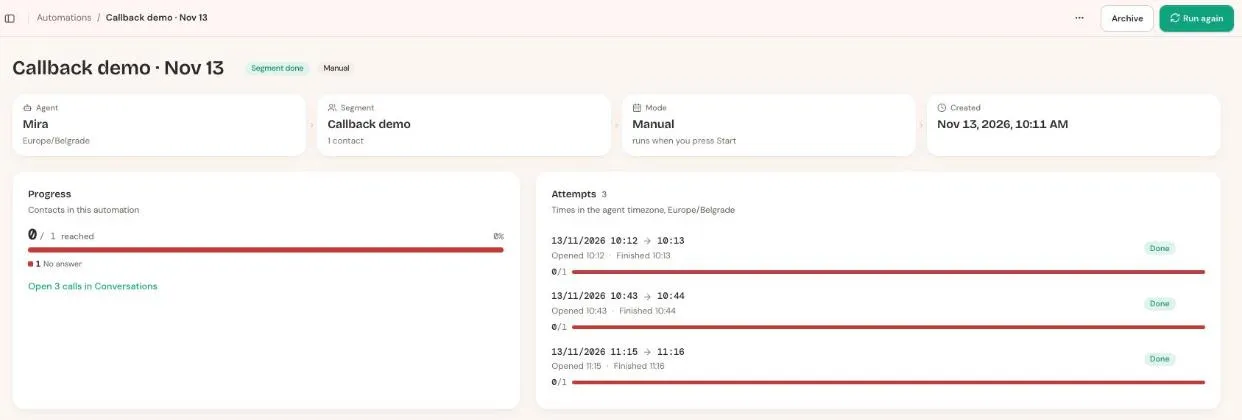
Section titled “Attempts and retries”Each run calls every contact of the segment that no run has reached yet. A contact who did not answer, was busy, got voicemail or was stopped is called again by the next run (Start, Run again, or the next scheduled window). A reached contact is not called again until you put it back on the list. A call that cannot be handed over at all (a bounce) is retried with backoff.
Status
Section titled “Status”| Status | Meaning |
|---|---|
new (Not started) | Has never run |
idle | Switched on with nothing due yet |
in_progress | Placing calls |
done (Segment done) | Nothing left to call: every contact has been called in this run |
stopped | Switched off by a person |
archived | Never runs again; frees its segment |
Start it again
Section titled “Start it again”- Start (manual automation): opens one run now, inside the agent’s calling hours.
- Run again (shown when the segment is done): opens a new run that calls every contact not reached yet; if every contact was reached, it calls nobody.
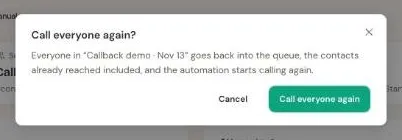
- ⋯ → Call everyone again: puts every contact back in the queue, those already reached included, and starts calling at once. Check the segment first: everyone in it gets a call.
- In the API, Put one contact back on the list returns a single contact to the queue.
One automation per segment
Section titled “One automation per segment”A segment is held by one live automation. Call a segment with a segment that another automation holds is refused, even when that automation is done or stopped. To start fresh on the same segment, Archive the old automation (this cannot be undone; its calls and results stay readable) and create a new one.