Save, publish and versions
Work in a draft, publish it to create a numbered version, and roll back from Version history; agents always run the published version, never the draft.
Save a draft
Section titled “Save a draft”- Save draft stores your work. The ▾ next to it offers Save draft without validation for a draft that does not pass the checks yet.
- If someone else saved the same draft after you opened it, you see The stored draft has changed. Yes overwrites their changes with yours; No keeps theirs.
Publish
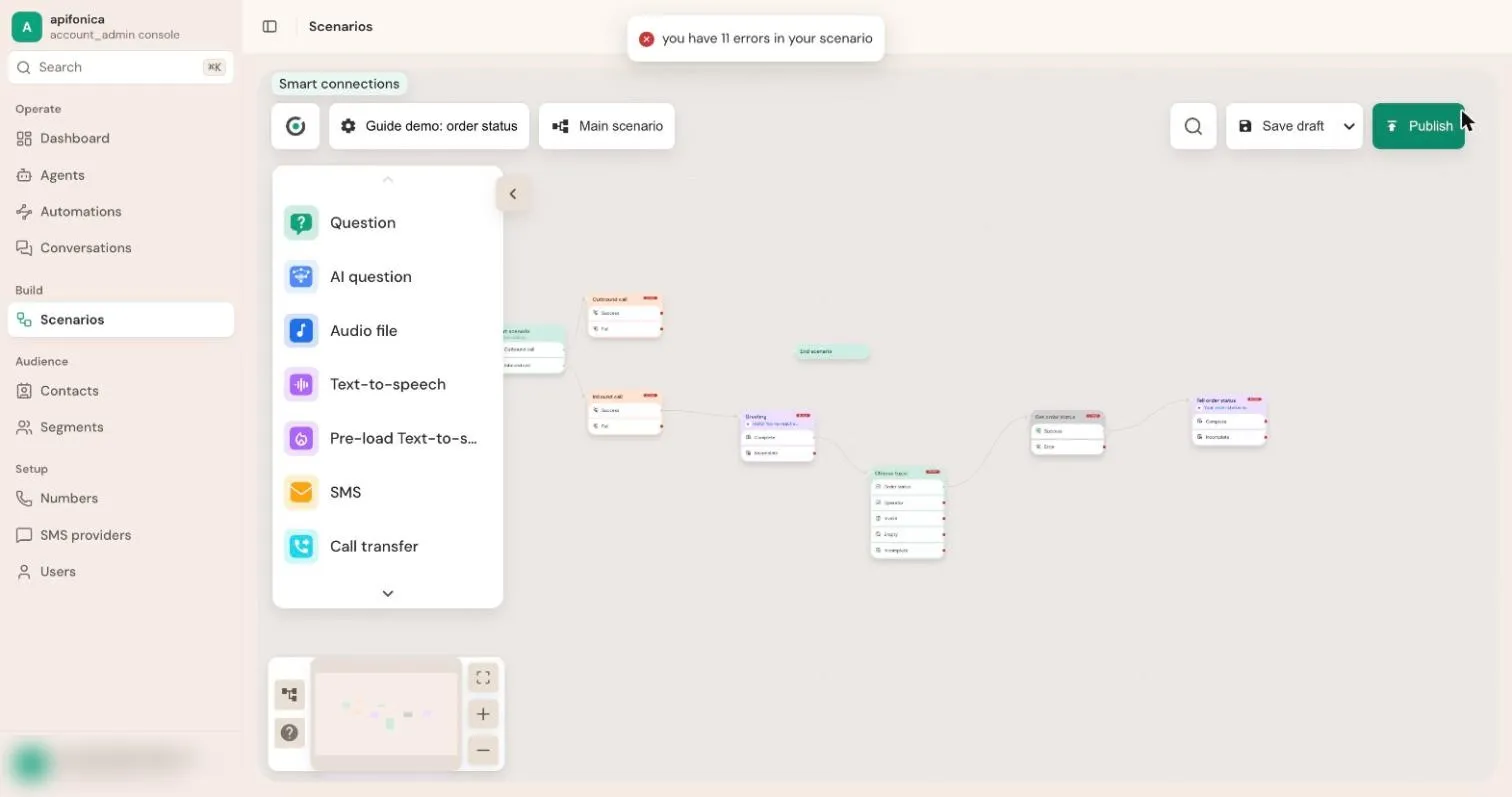
Section titled “Publish”- Publish validates the scenario first. A message such as you have 11 errors in your scenario means outputs are unconnected or bricks are not configured. Fix every red badge, then publish again.
- After publishing you see Scenario published and the scenario becomes v1.
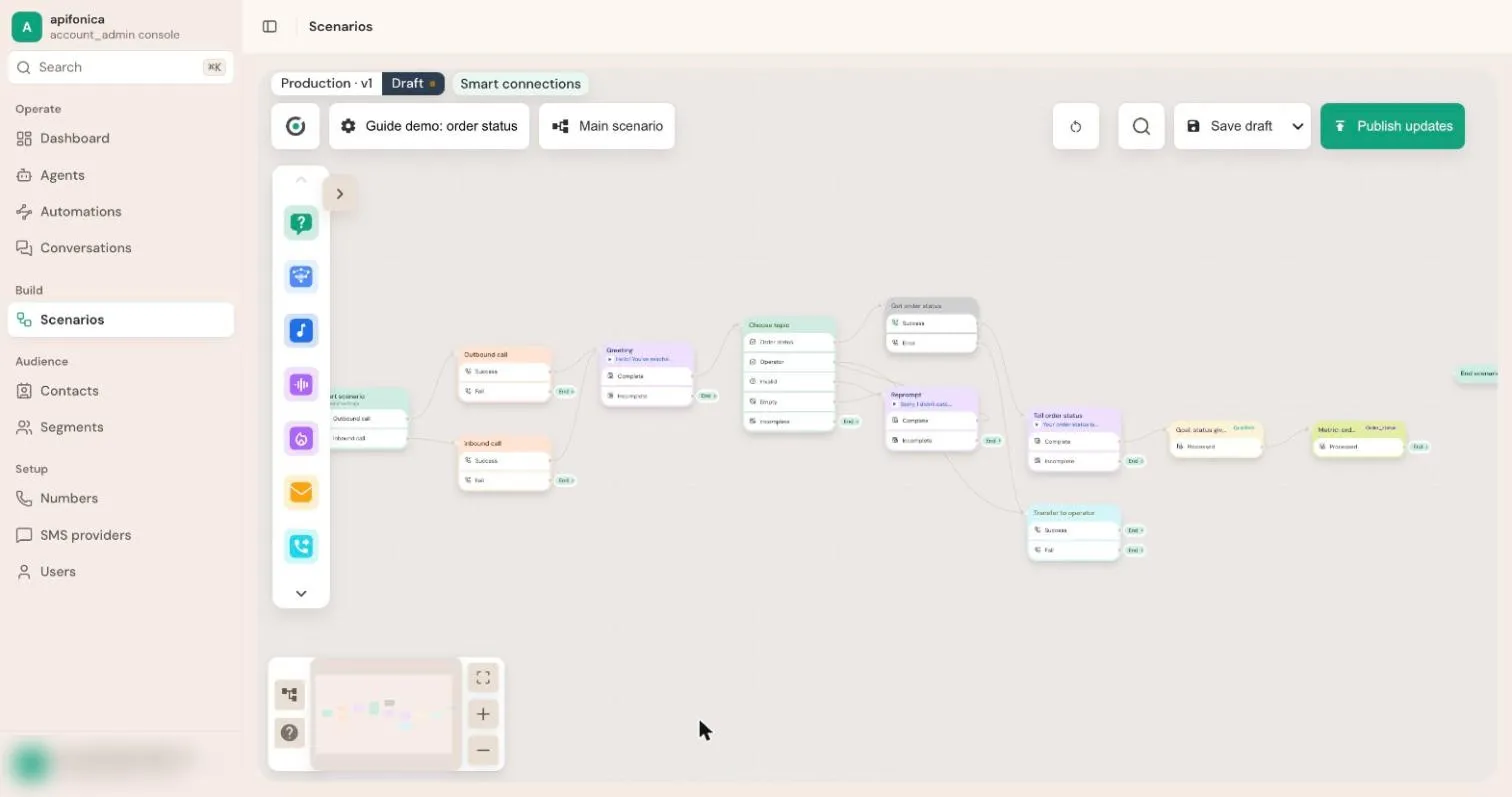
- The first change after that starts a draft: a Production · v1 | Draft switch appears at the top and the button becomes Publish updates. Calls keep running v1 until you publish the update.
Version history and rollback
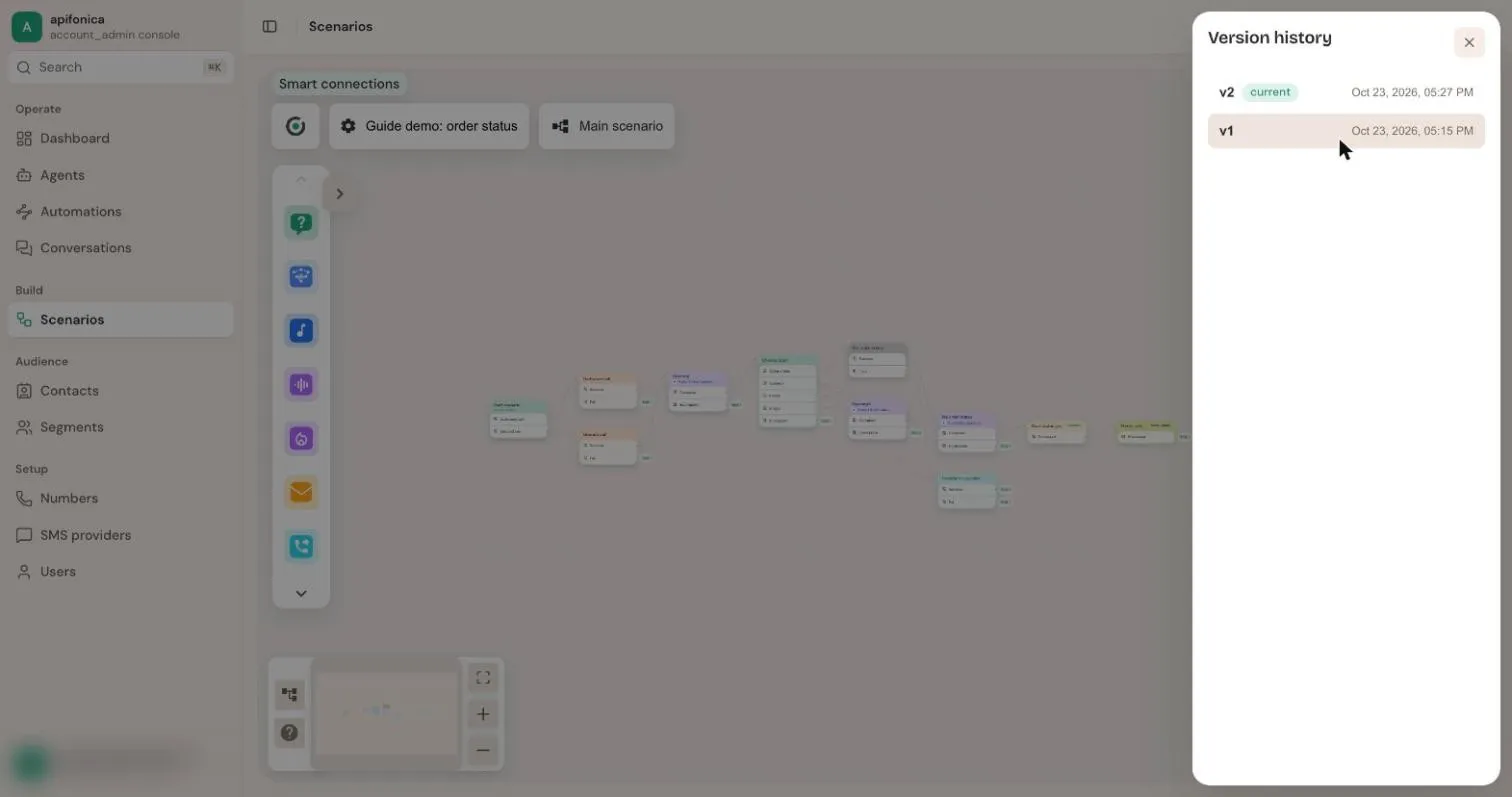
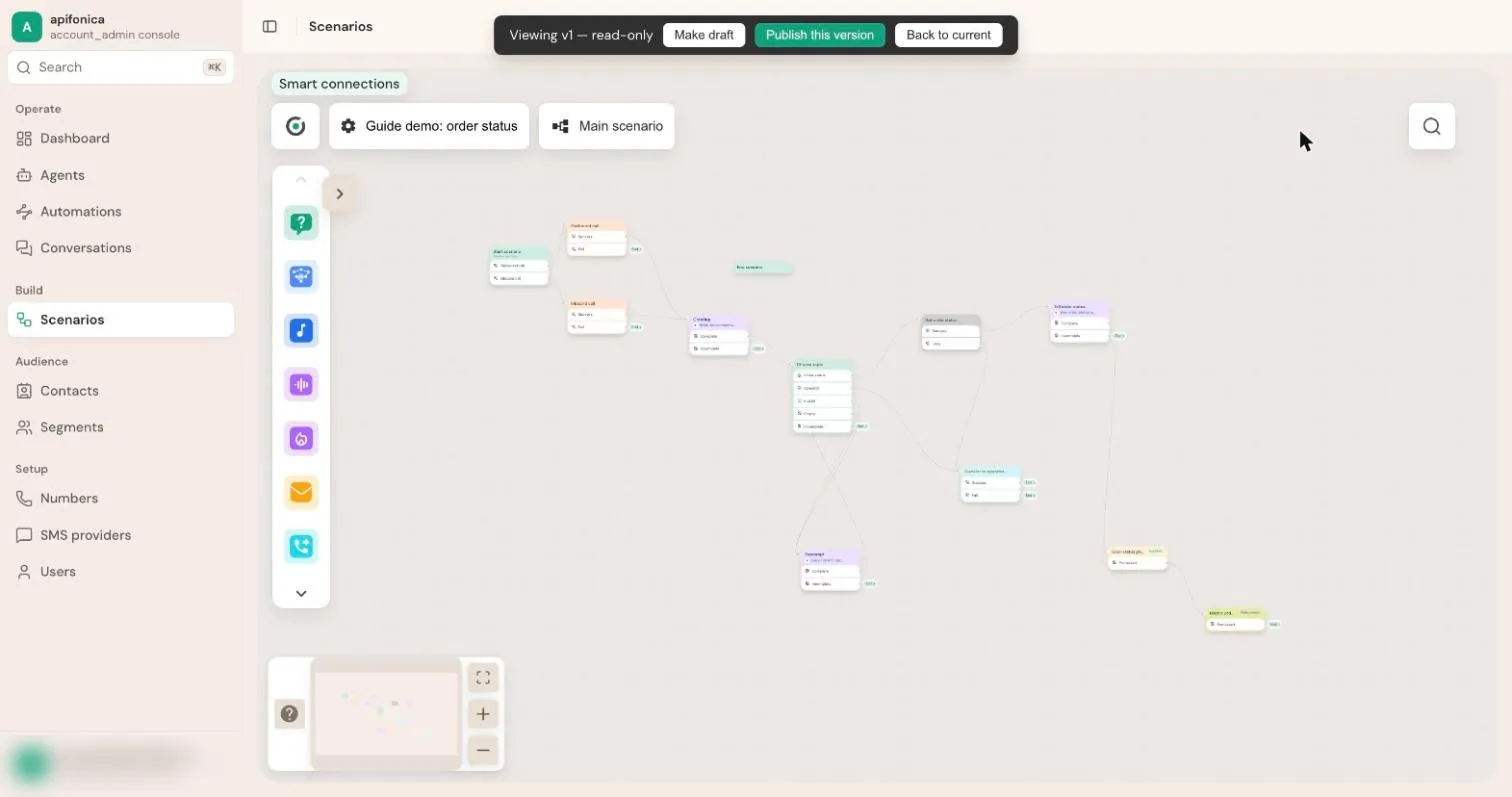
Section titled “Version history and rollback”Version history (the clock icon, top right) lists every published version with its date; the newest is marked current. Click an older version to view it read-only, with three choices:
| Choice | What it does |
|---|---|
| Make draft | Starts a new draft from that version |
| Publish this version | Rolls back: that version becomes current again |
| Back to current | Returns to the current version |
Before you publish
Section titled “Before you publish”Run the checks in Test and debug: test answers in Question test cases, run HTTP requests against test data, and make one test call to your own phone.