Agents
An agent runs one published scenario on one number (or a number pool) with a fixed number of lines; it answers every inbound call to that number at once and dials out only when an automation gives it a segment.
The agent list
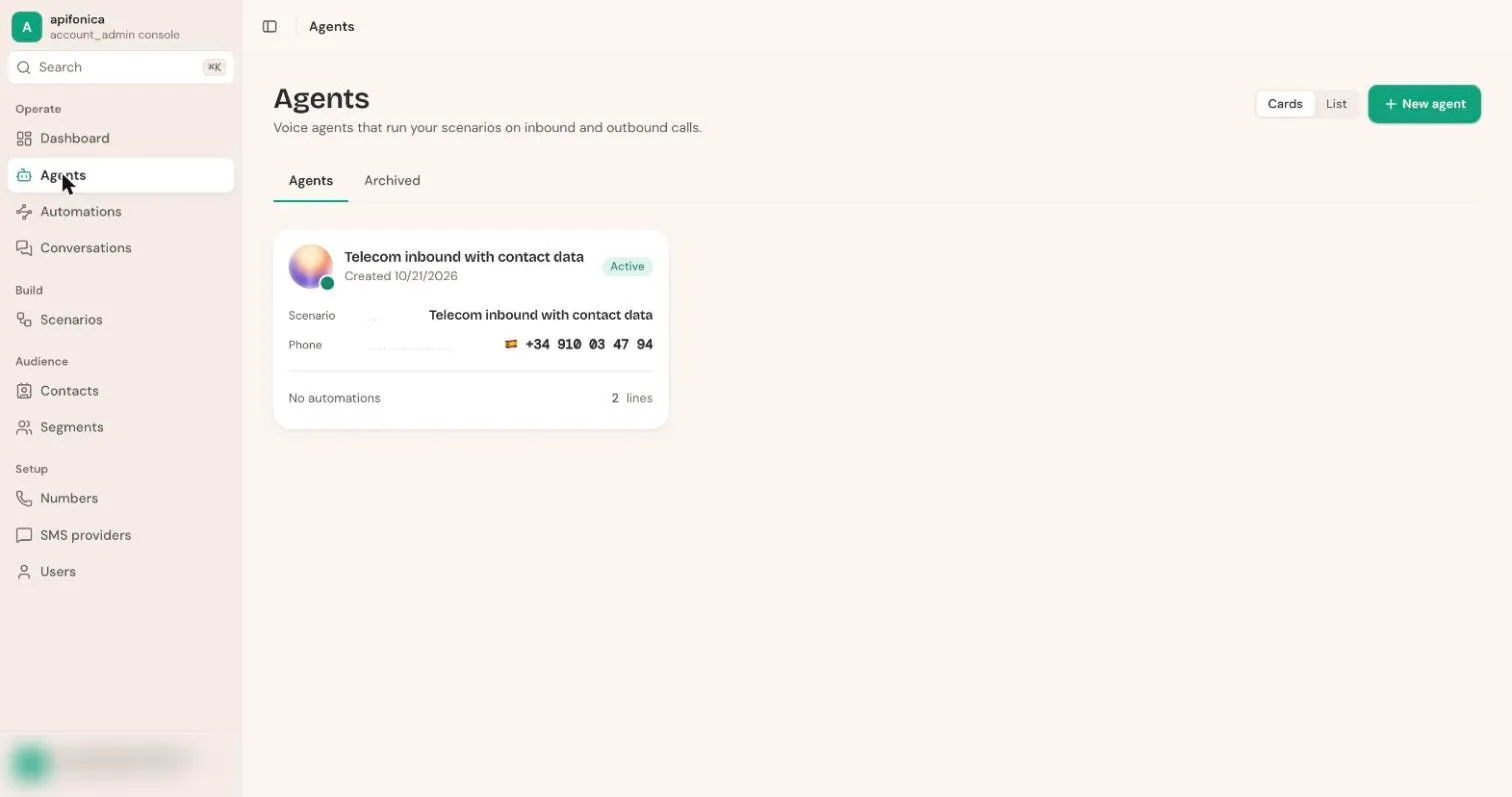
Section titled “The agent list”Operate → Agents shows each agent as a card (or a table with List): status, scenario, phone number, automations and lines. The Archived tab keeps agents you archived.
Create an agent
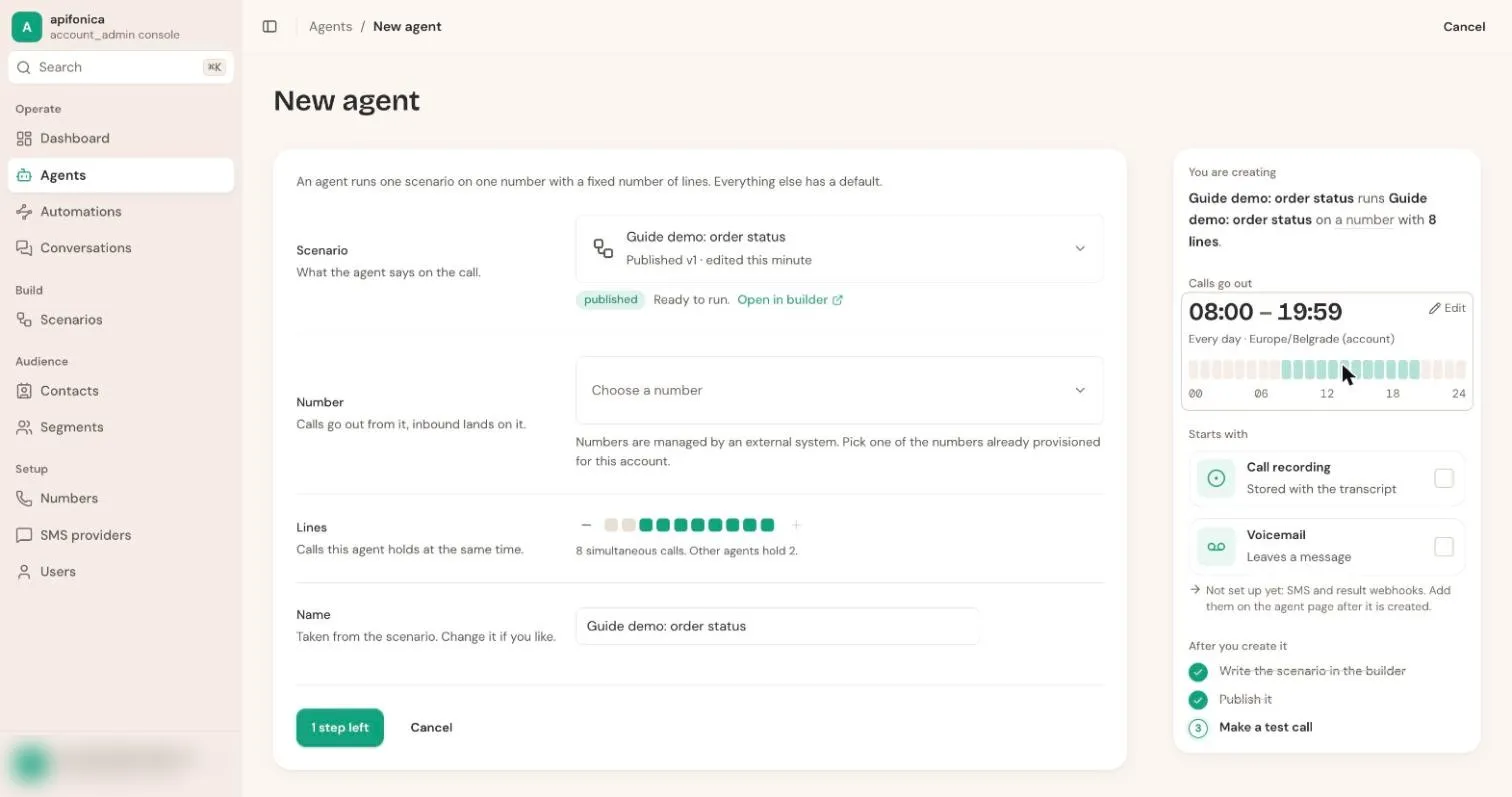
Section titled “Create an agent”Click + New agent, or use Create agent in a scenario’s ⋯ menu to start with that scenario filled in.
| Field | What to set |
|---|---|
| Scenario | What the agent says. Only published scenarios can run; the form shows published · Ready to run and an Open in builder link |
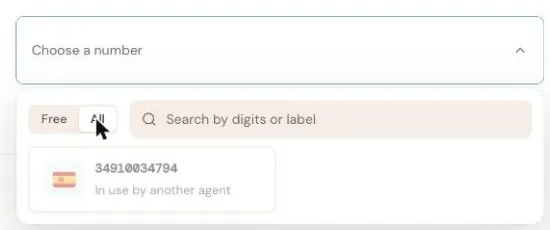
| Number | Where calls go out from and where inbound calls land. Free lists unused numbers; All also shows numbers in use or inactive (greyed out) |
| Lines | Simultaneous calls this agent holds, set with − and +. The hint shows how many lines other agents hold |
| Name | Taken from the scenario; change it if you like |
The panel on the right summarises the agent and holds the rest of the defaults:
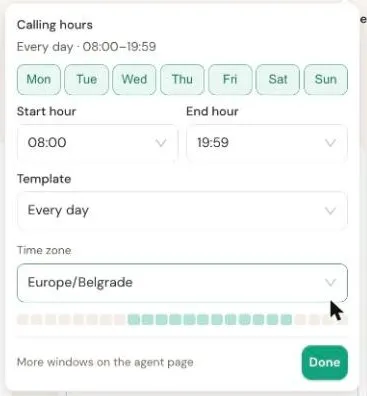
- Calls go out: calling hours for outbound calls, by default every day 08:00–19:59 in the account time zone. Edit sets the days, start and end hour, a template (Every day, Weekdays, Weekends) and the time zone.
- Starts with: tick Call recording (stored with the transcript) if needed. Voicemail detection is set on Start scenario; the agent’s Voicemail option no longer changes anything.
- SMS and result webhooks are added on the agent page after it is created.
The button at the bottom counts the steps left until the required fields are filled, then creates the agent.
Inbound calls
Section titled “Inbound calls”As soon as the agent is active, every call to its number runs the scenario its routes pick (see Routing below), from the Inbound output of the scenario’s Start scenario. An agent with no routes plays its main scenario. No automation is needed. The agent’s lines apply to inbound calls too: when every line is busy, the call is refused. Calling hours apply only to outbound calls; an active agent answers at any hour.
The agent page
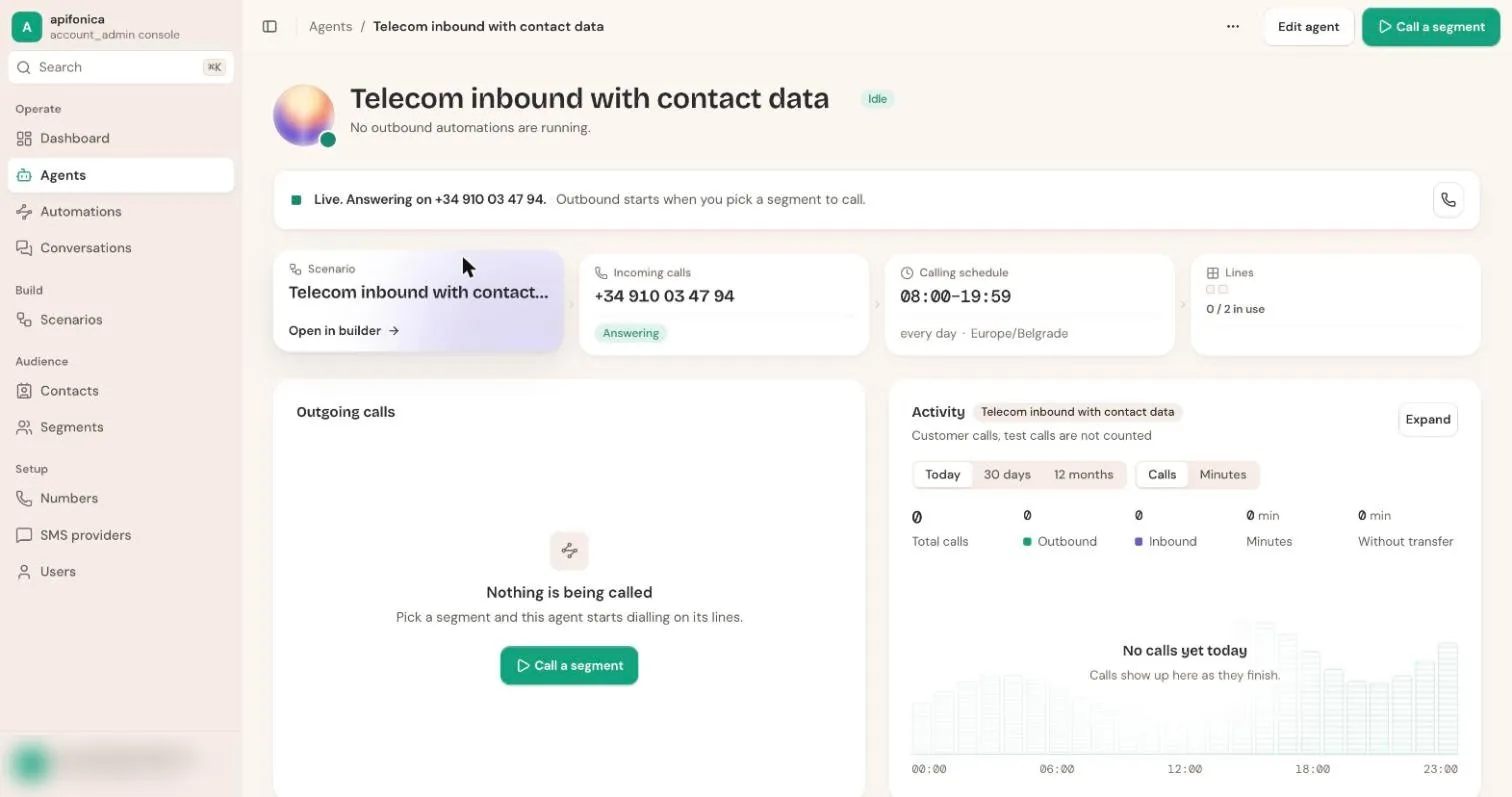
Section titled “The agent page”Click an agent to open its page. The banner tells you its state, for example Live. Answering on +34 910 03 47 94. Outbound starts when you pick a segment to call.
- Scenario: the scenario it runs and Open in builder.
- Incoming calls: the number, its state (Answering) and View conversations.
- Calling schedule: the hours and time zone, with Edit schedule.
- Lines: lines in use out of the total, with Edit lines.
- Outgoing calls: running automations. Call a segment opens the form for a new automation on this agent (choose Now there to start calling at once); once the automation starts, it places real calls to every contact in the segment, so check the segment first; see Automations.
- Activity: calls and minutes for the agent; test calls are not counted.
Routing
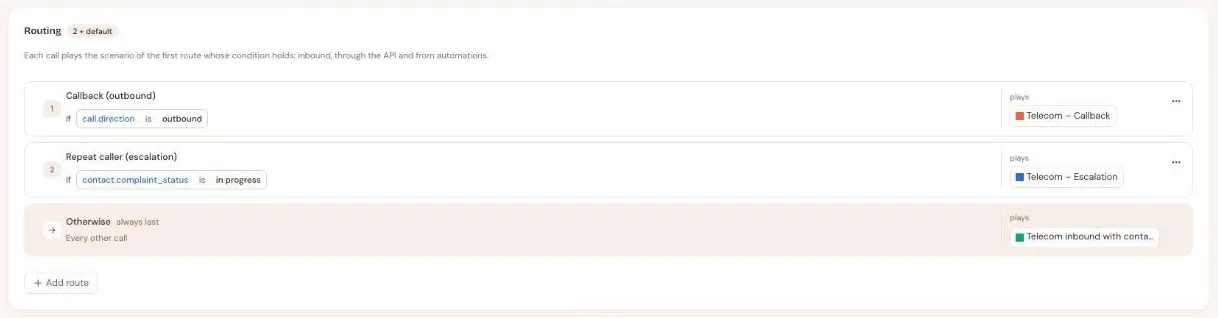
Section titled “Routing”Routing lets one agent play a different scenario for each call. Before the bot says a word, the agent checks its routes from top to bottom and plays the scenario of the first route whose condition holds; Otherwise always comes last and plays the agent’s main scenario. Routes apply to inbound calls, to calls placed through the API and to calls from automations.
Use routing to split one large scenario into small ones that are easier to change, test and publish one at a time. For example, a support line with three routes:
| Route | Condition | Plays |
|---|---|---|
| Callback (outbound) | call.direction is outbound | Telecom – Callback |
| Repeat caller (escalation) | contact.complaint_status is in progress | Telecom – Escalation |
| Otherwise | every other call | Telecom inbound with contact data |
Add a route
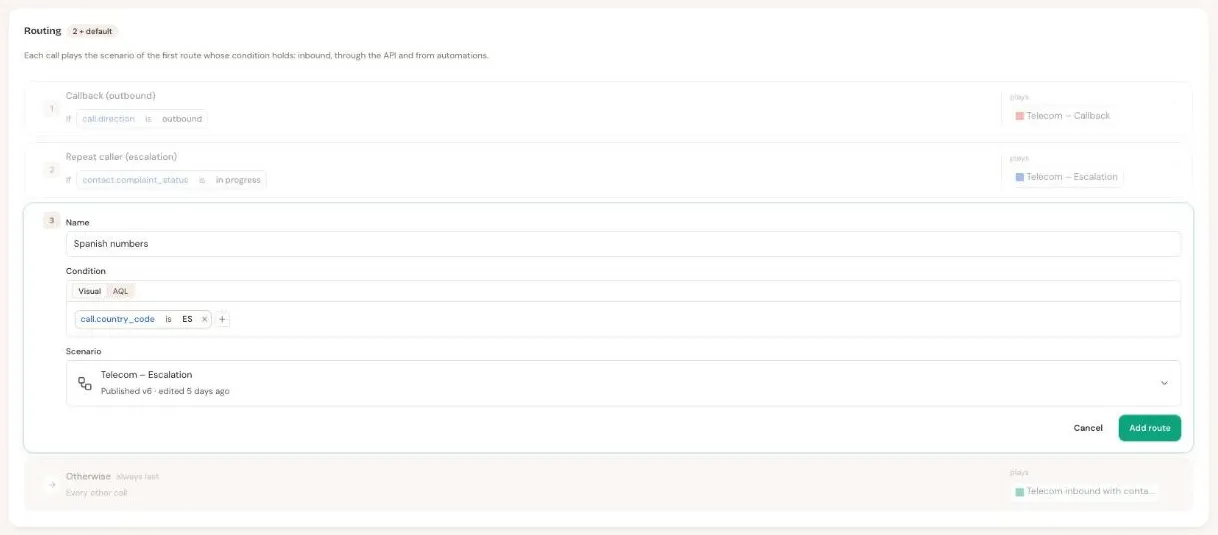
Section titled “Add a route”- On the agent page, in Routing, click + Add route. The new route goes above Otherwise.
- Type a Name.
- Build the Condition. Visual builds it with + Add condition (a single Condition or a Group in brackets); AQL takes it as text, for example
contact.complaint_status = "in progress". In AQL, Tab takes a suggestion. - Pick the scenario in Choose a scenario. The picker shows All, Published and Drafts.
- Click Add route. ⋯ on a route opens its actions.
What a condition can use
Section titled “What a condition can use”| Field | What it holds |
|---|---|
call.direction | inbound or outbound |
call.number | The other party’s number |
call.country_code | The country of that number |
now, now.date, now.time, now.weekday | The date and time of the call |
segment | A segment the contact is in |
contact.<field> | Any data field the account’s contacts hold, for example contact.complaint_status |
Operators: =, !=, <, <=, >, >=, IN (…) and NOT IN (…), joined with AND and OR and grouped in brackets. Times take durations such as now - 2h (ms, s, m, h, d).
Good to know
Section titled “Good to know”- A route can point at a scenario that has no published version yet. Live calls pass over such a route; a test call placed through the agent with the API (
is_testandprefer_draft) can use it, so you hear a new branch before it goes live. - A test call from the builder plays the open scenario directly and skips routing. To check routing, call the agent’s number from your phone. See Test and debug.
- Each call records the route it took (
routing_sidandrouting_planin the API). - A scenario or segment that a route uses cannot be deleted. Renaming a contact data field rewrites the conditions that read it; removing such a field is refused.
Edit an agent
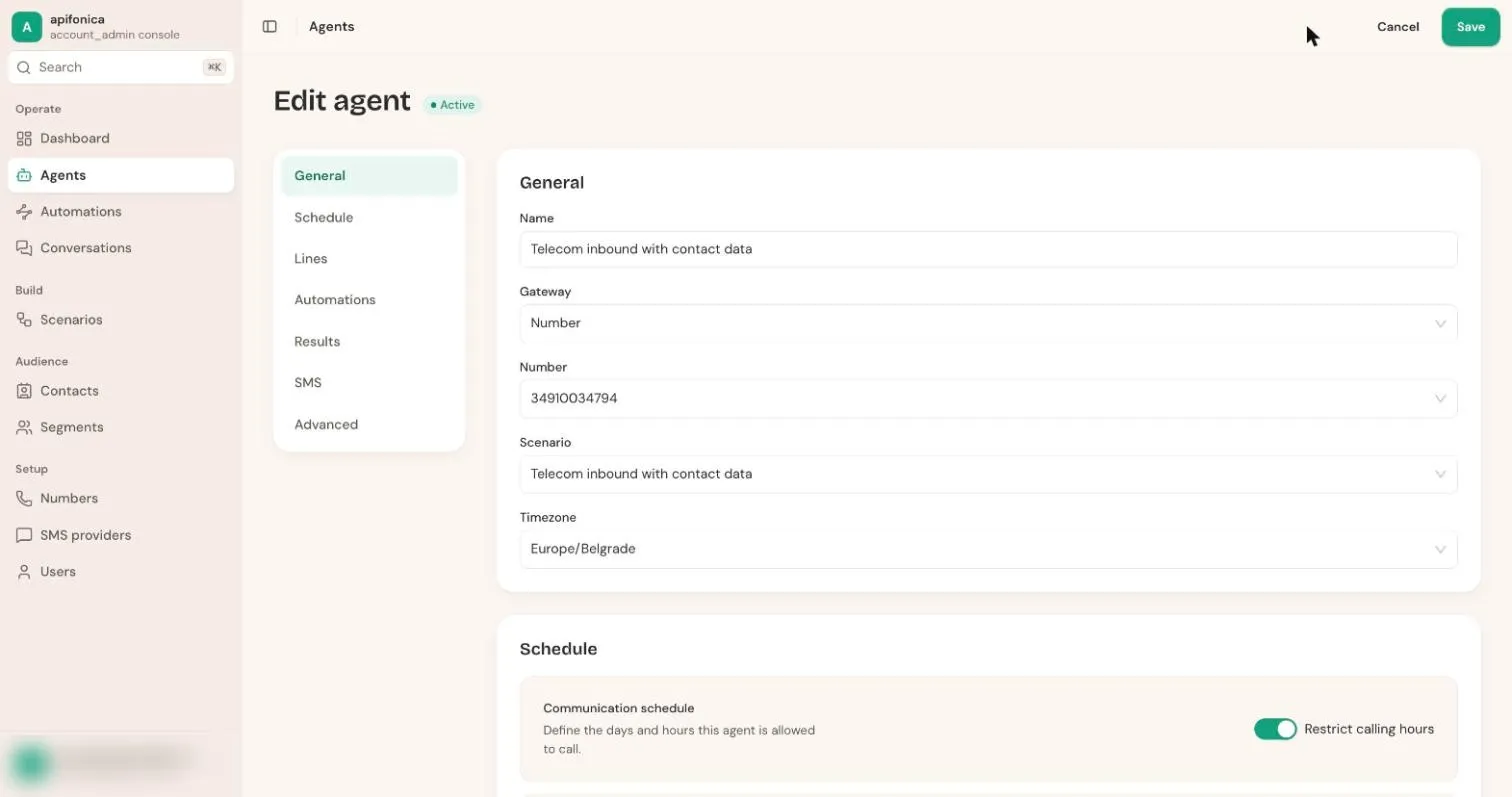
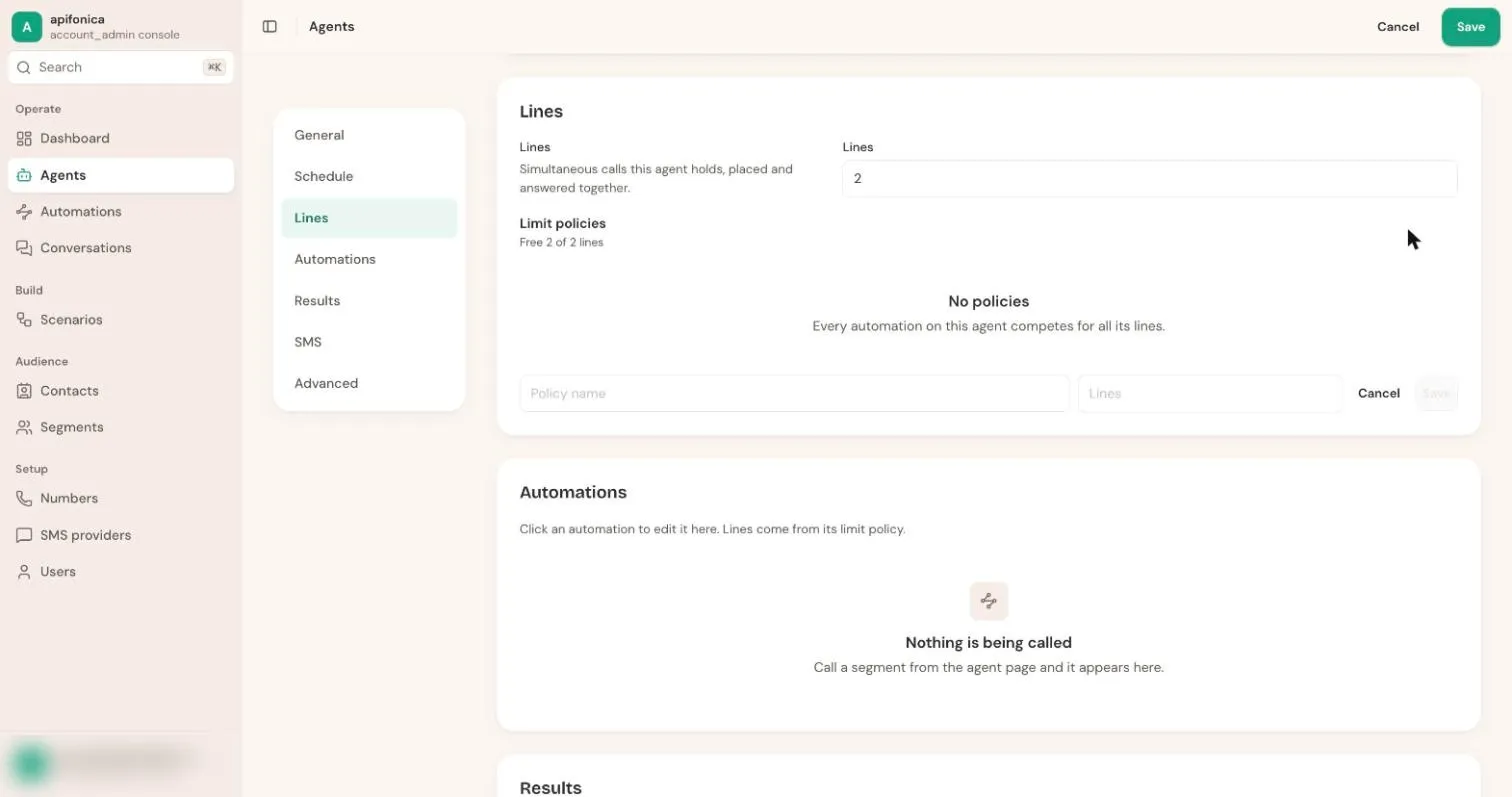
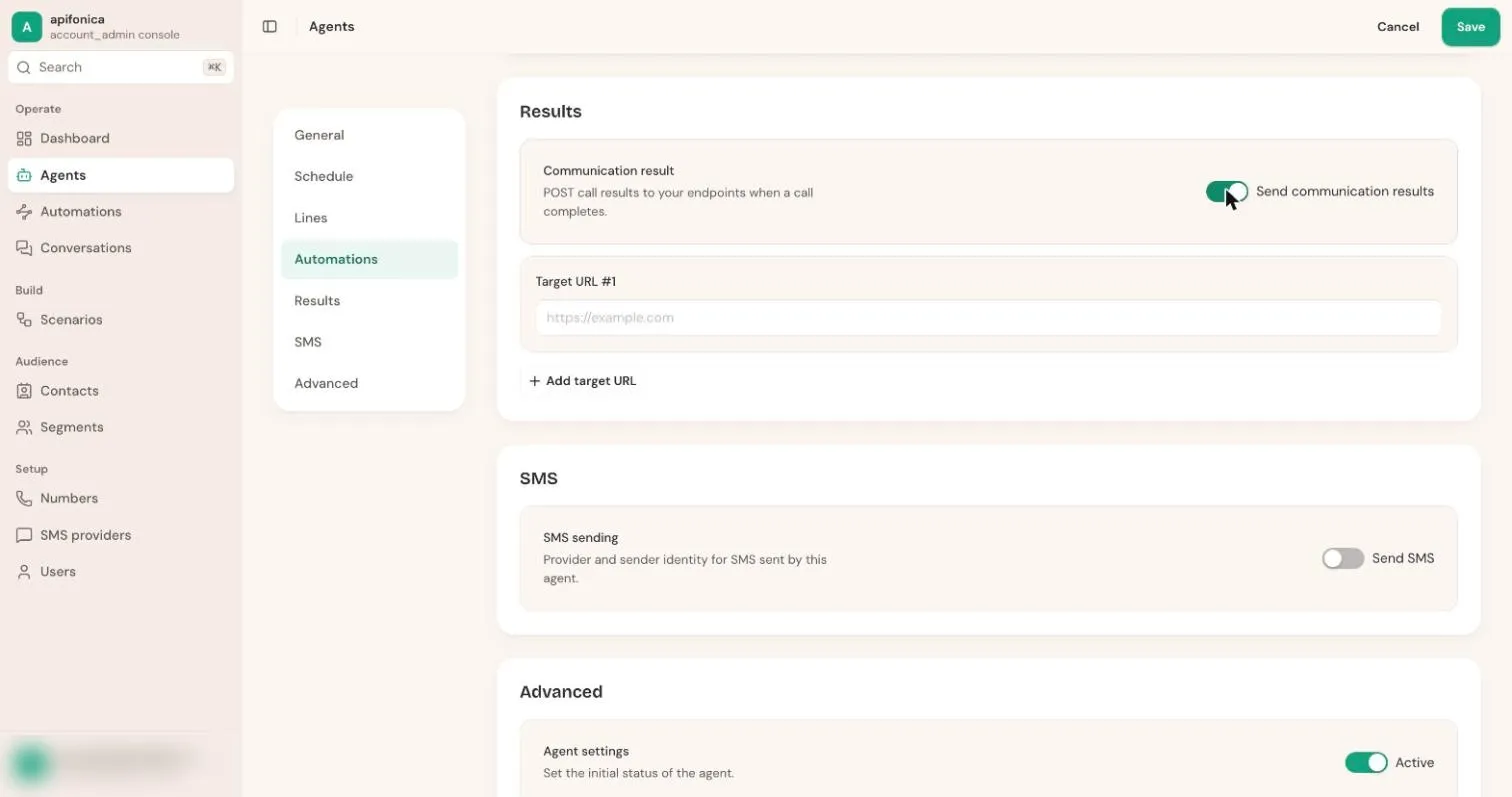
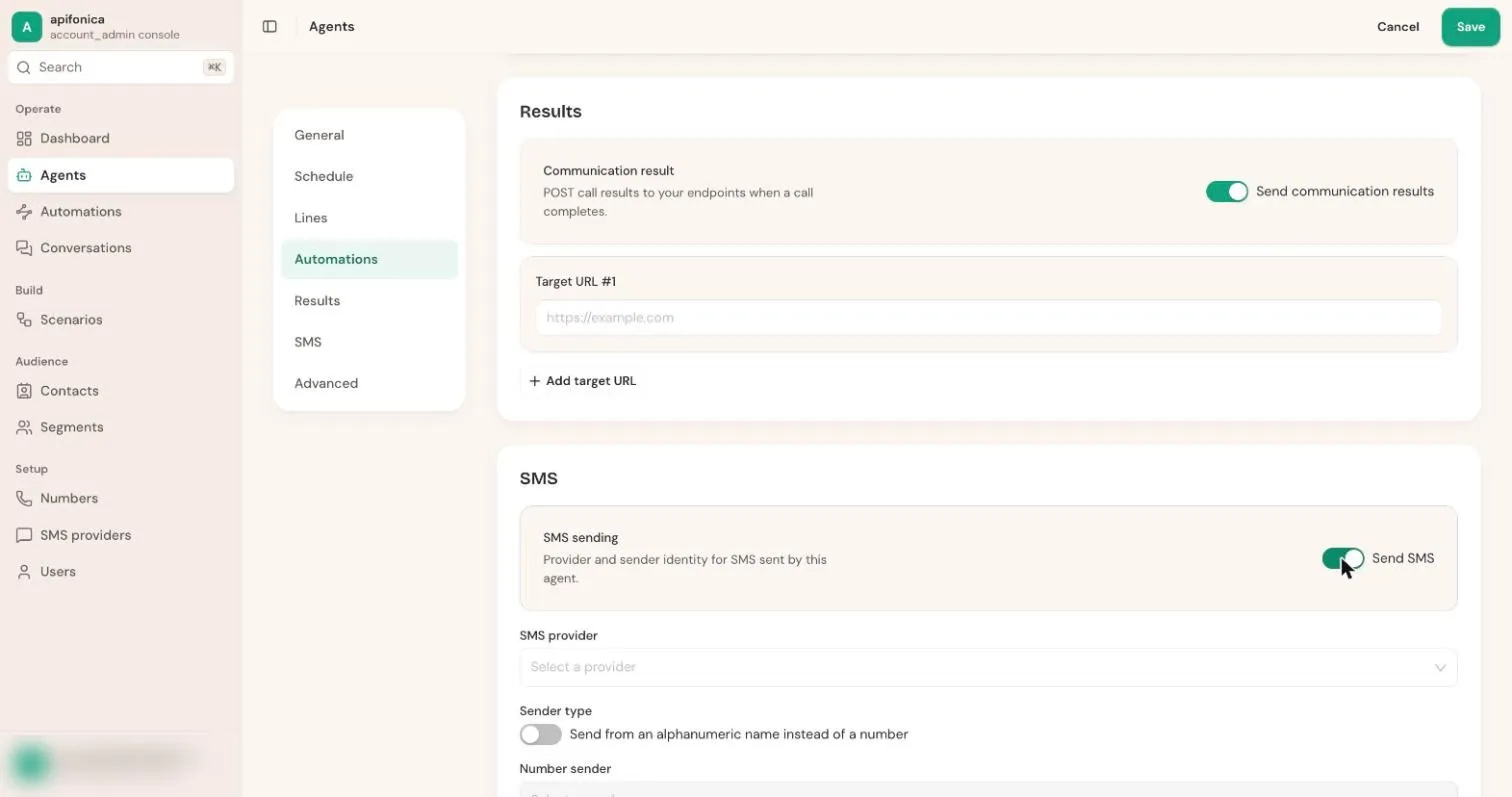
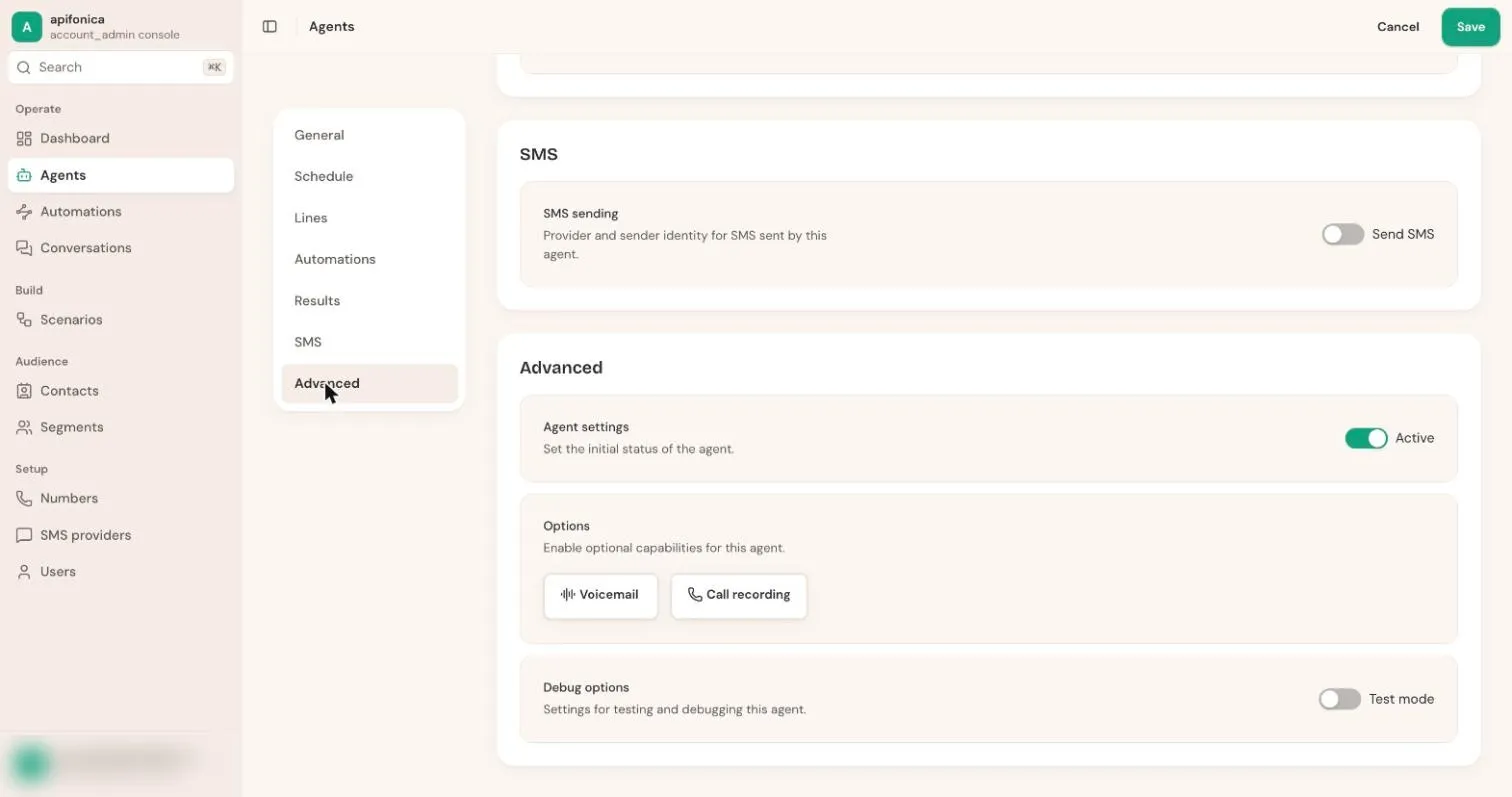
Section titled “Edit an agent”Edit agent opens all settings on one page; Save and Cancel are at the top right.
| Section | Settings |
|---|---|
| General | Name, Gateway (Number or Number pool), number, scenario, time zone |
| Schedule | Restrict calling hours and one or more schedules (days, hours, template); Add schedule for more windows |
| Lines | Number of lines and Limit policies: a named share of lines reserved for automations. Without policies, every automation on the agent competes for all its lines |
| Automations | The automations on this agent; click one to edit it |
| Results | Send communication results: when a call completes, its result is POSTed to each Target URL you add. See Result webhooks |
| SMS | Send SMS: the SMS provider, the sender type (an alphanumeric name or a number) and the sender. See SMS sending |
| Advanced | Active (initial status), the Call recording option, and Test mode for testing and debugging. The Voicemail option no longer changes anything: voicemail detection is set on Start scenario |
Disable, archive, delete
Section titled “Disable, archive, delete”| Action | Effect | Undo |
|---|---|---|
| Disable | Pauses dialling; keeps the number and settings | Turn it back on: Agent actions → Enable |
| Archive | Archives its automations and frees the number; a new agent on that number starts without routes | Cannot be undone |
| Delete | Removes the agent; only possible after archiving | Cannot be undone |
All three are in the agent’s ⋯ menu. A number carries at most one agent (a number pool can be shared): archive an old agent to free its number, or see Phone numbers.