Conversations
Every call, inbound, outbound or test, ends up in Operate → Conversations with its outcome, recording and full transcript; it is the first place to look when a scenario does something unexpected.
The call list
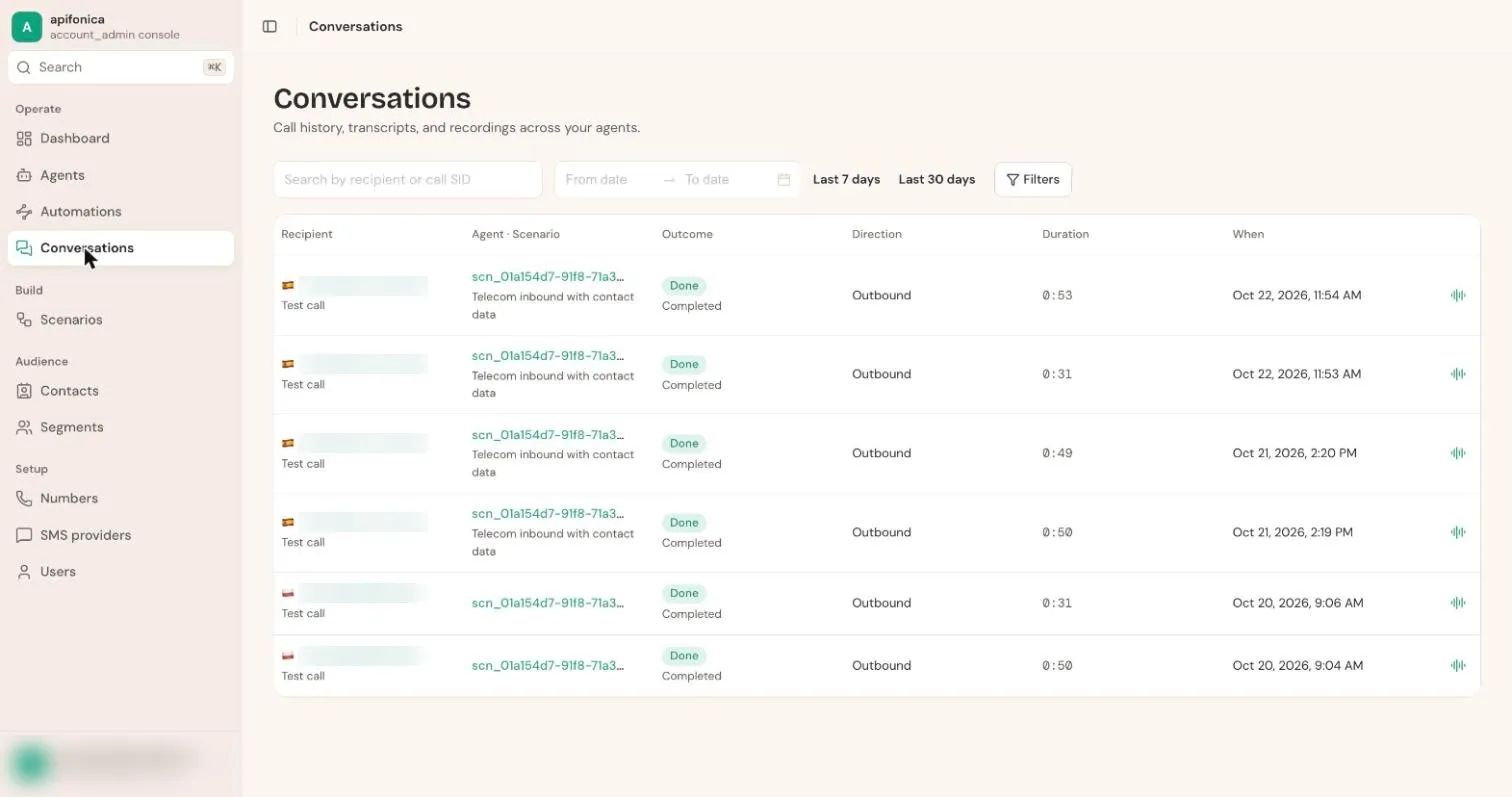
Section titled “The call list”Each row shows the recipient (test calls are marked Test call), the agent and scenario, the outcome (for example Done · Completed), direction, duration and time; a waveform icon means a recording exists. Search by recipient or call SID, pick dates, use Last 7 days or Last 30 days, or open Filters.
One conversation
Section titled “One conversation”Click a row to open the call.
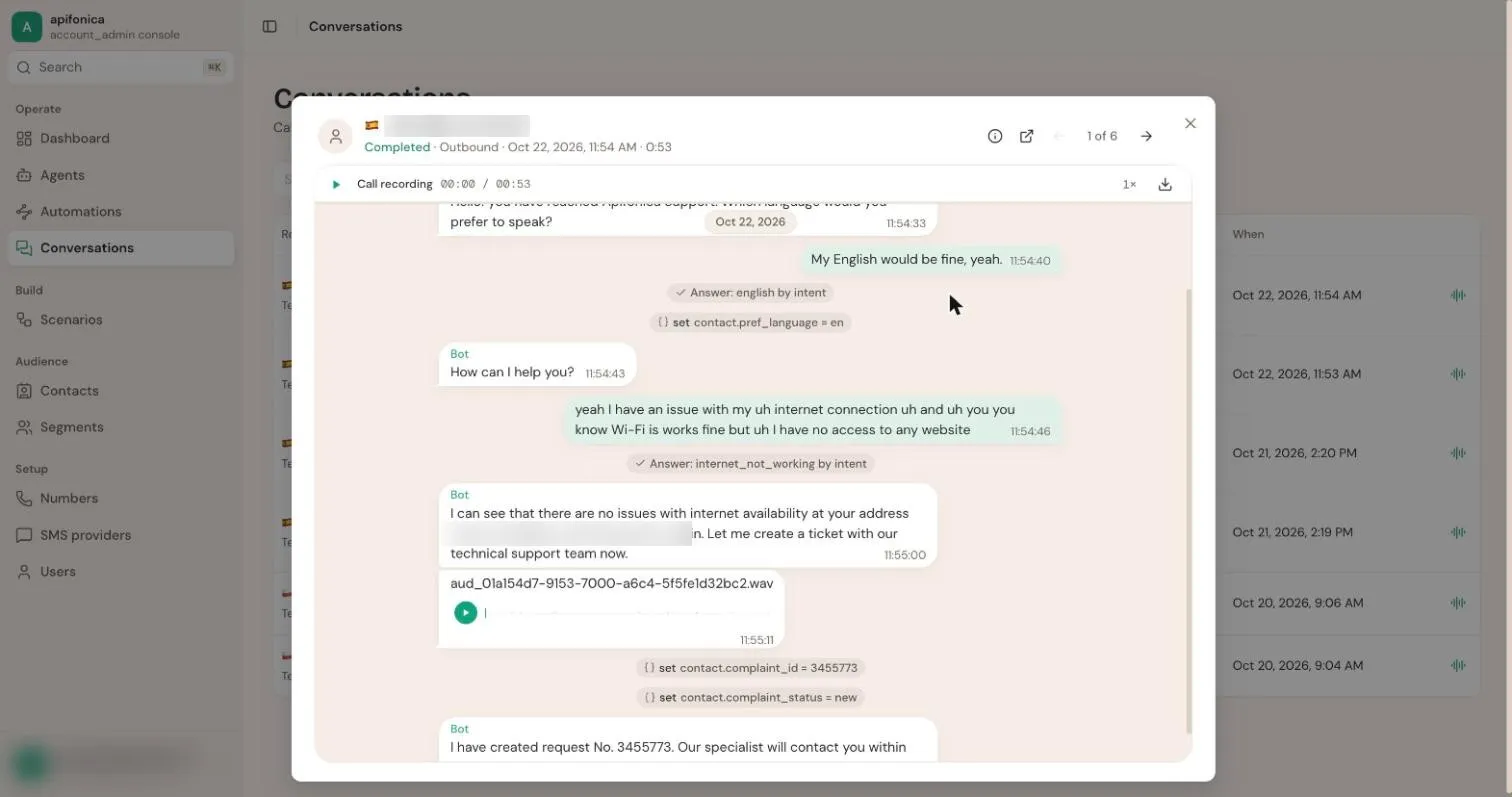
- Call recording at the top: play, change speed (1×) and download.
- The transcript: bot turns and caller turns with times, audio files played, and grey markers for what the scenario did, such as Answer: english by intent (which answer a Question matched and how) and set contact.complaint_id = 3455773 (a variable written).
- ← → and 1 of 6 step through the calls in the list; the ↗ icon opens the call in its own tab.
Call info
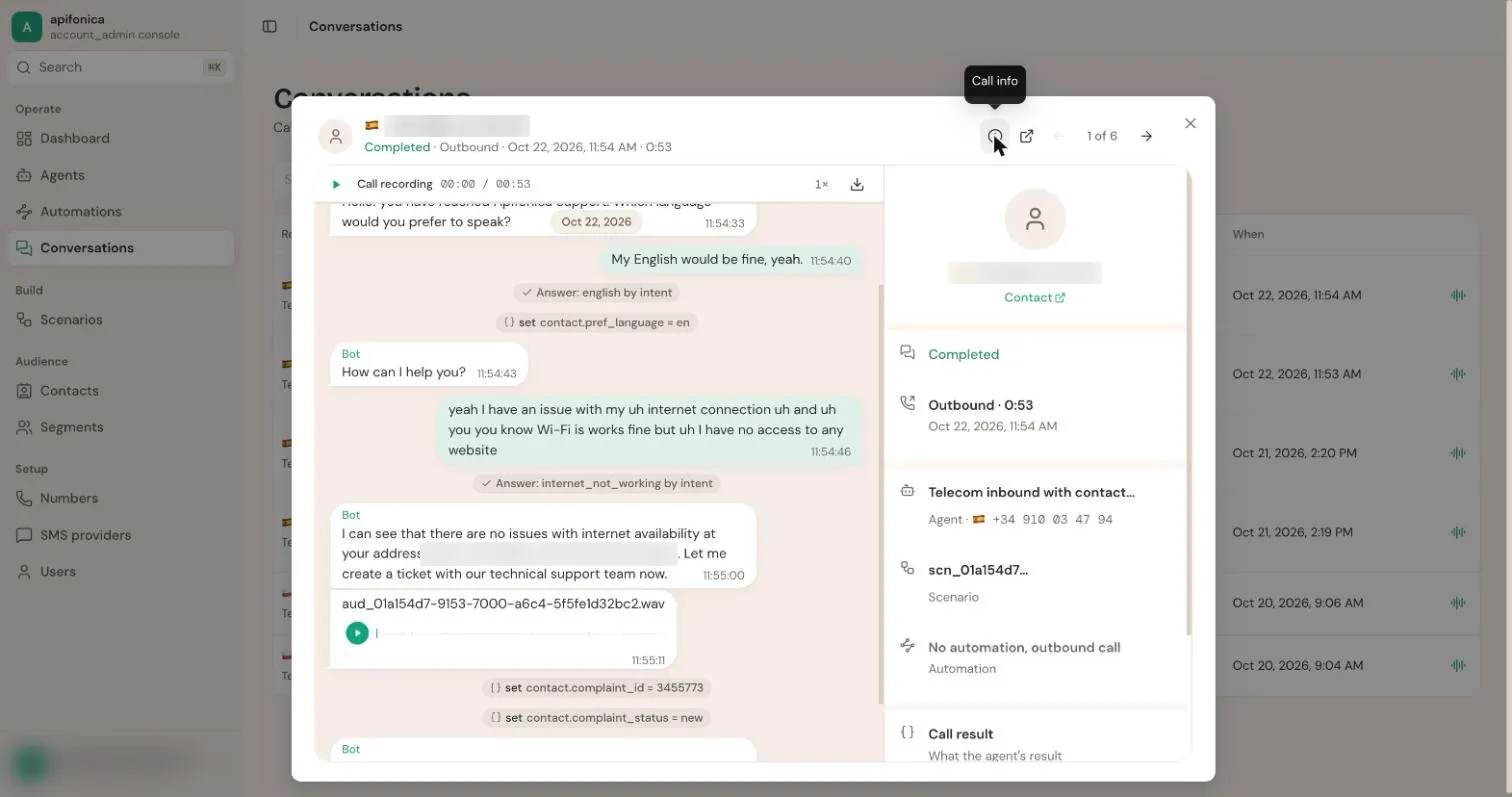
Section titled “Call info”Call info (the ⓘ icon) adds a side panel:
- the contact, with a link to the contact page;
- status, direction, duration and time;
- the agent and its number, the scenario with a Scenario run link, and the automation;
- Call result: what the agent’s result endpoints received, with View;
- the Communication ID and Call SID to give support.
Scenario run
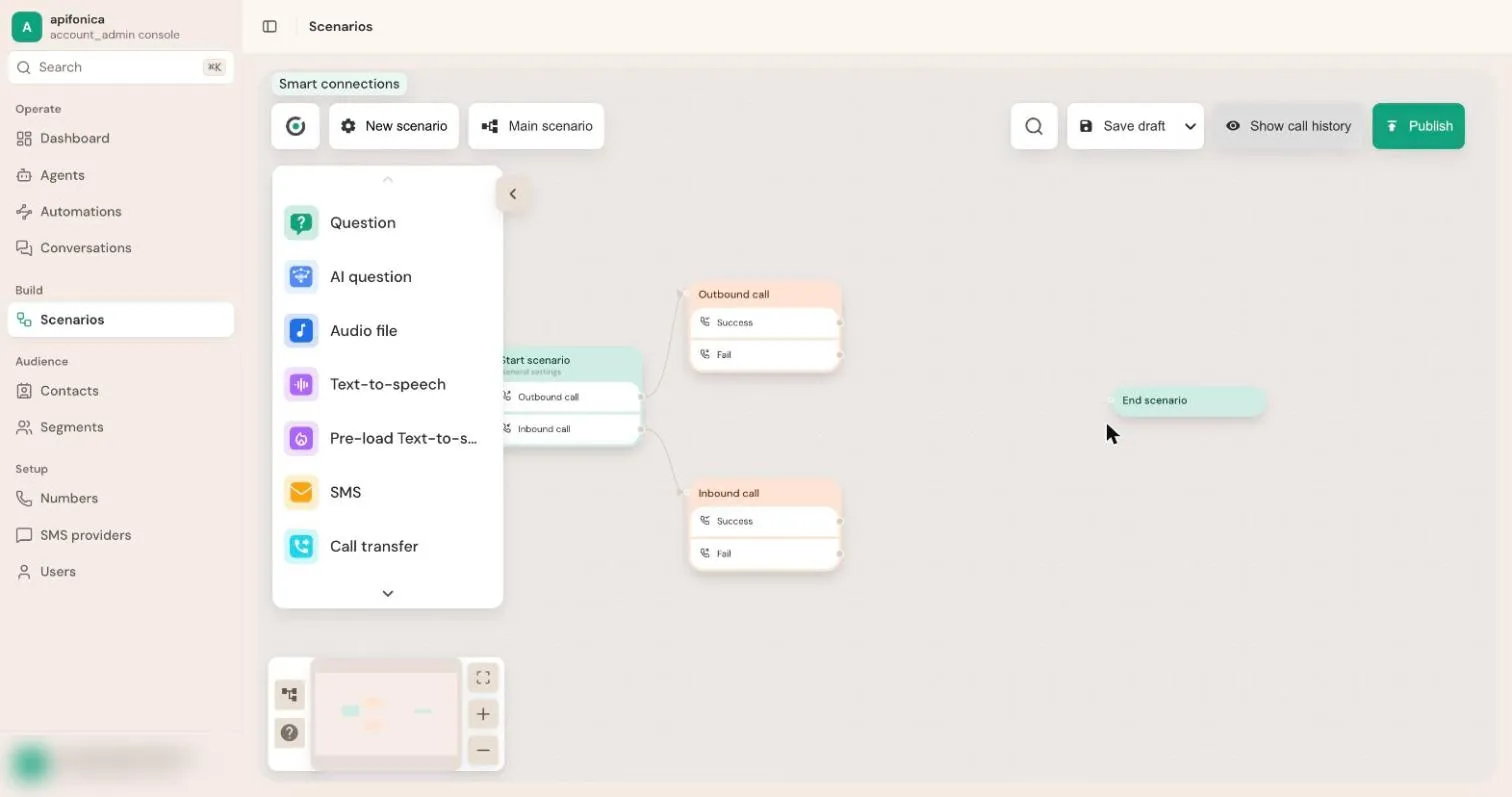
Section titled “Scenario run”Scenario run opens the scenario builder in history mode, with Show call history to review this call against the scenario. If the scenario used for the call has since been deleted or replaced, you get The scenario with this call history is not available with your current account and an empty canvas: do not save it.
Using conversations to debug a scenario: Test and debug.